THE TOOL COLLECTION
Face Swap Tools
A different face. Your expressions. Explore ways to change your on-camera look, from a quick webcam preview to a finished video.
Choose what you want to do
5 practical guides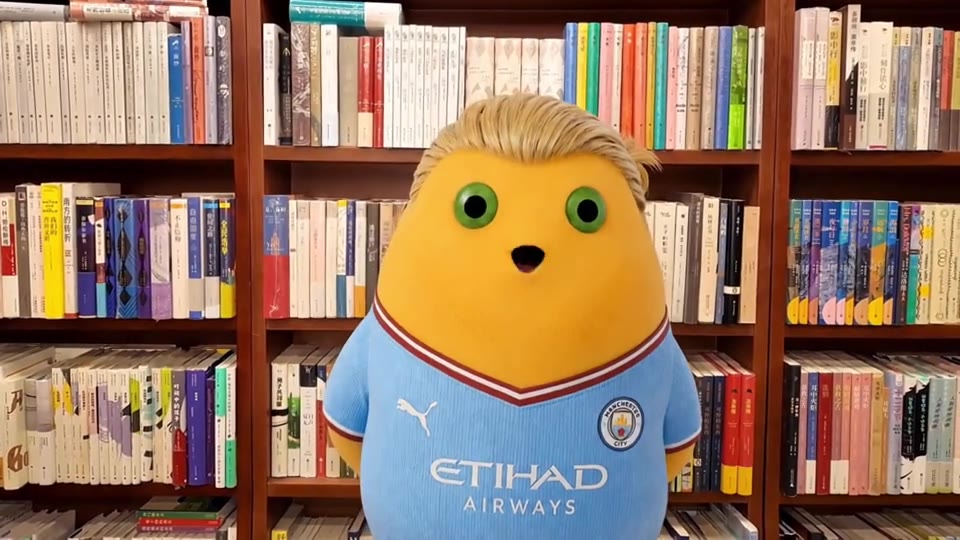 Effect demonstration
Live Stream Face Swap
Prepare a gaming facecam with separate game sound and commentary. Rehearse gameplay, readable menus and hiding or restoring the AI picture before broadcasting.
Prepare your gaming streamEffect demonstrationOBS Face Swap
Add your live facecam as an OBS Browser Source and record a tutorial with your screen and microphone.
Prepare your OBS recordingEffect demonstrationLive Face Swap PC
Choose a PC webcam and microphone, check Windows and website permissions, then verify picture and sound in a short recording.
Set up your PC camera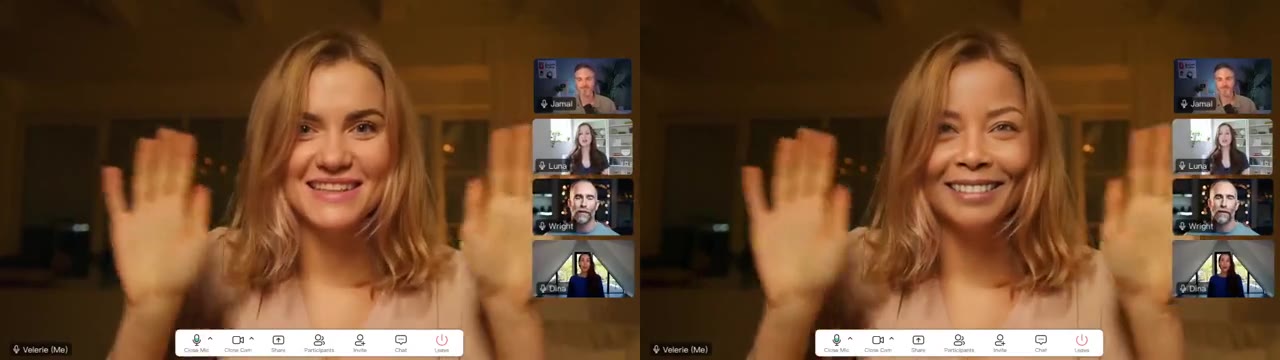 Effect demonstration
Face Swap Video Call
Prepare a character video call with OBS Virtual Camera. Check the received picture, microphone and two-way conversation with a friend.
Prepare your call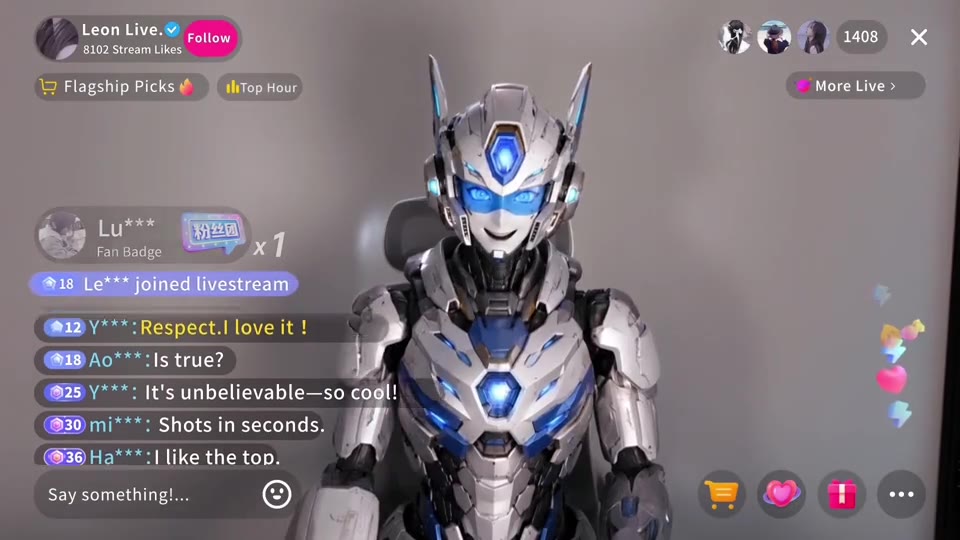 Effect demonstration
Deepfake Avatar Streaming
Send your live avatar to OBS and rehearse switching between your Q&A and break scenes.
Prepare your broadcastImages show existing effect demonstrations, rather than screenshots of the guide's OBS setup or a verified broadcast. Each guide includes the full browser studio and explains how to check its workflow with your own camera and reference.
Start with the result you need.
For a camera preview and reference comparison, explore Face Swap Tools. For avatars, visual styles, photos and short recordings, browse Creative Tools.
To record a full take with sound, use the Webcam Video Recorder with Filter. To save a single frame, use Webcam Filters.
Explore face swap tools
Camera previews & recordings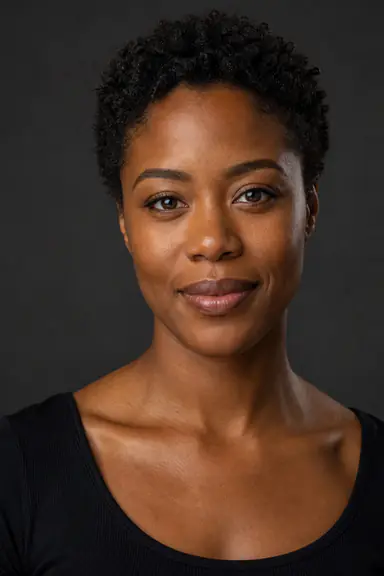
Portraits show available references. Your result depends on the reference, lighting and movement.
FROM CAMERA TO CLIP
One place to preview, record and save.
The full Live Face Swap studio keeps your reference, camera preview and recordings together. Start with the look you want, then capture a performance at your own pace.
Choose your face
Open Studio and select Face Swap. Pick a portrait from the gallery or upload a clear reference photo.
Find your framing
Sign in, allow camera access and check your lighting. Choose portrait or landscape, then start AI to preview the result.
Make a take
Record when you are ready. Stop AI when you finish, then review, trim and download your favorite clip.
BEFORE YOU BEGIN
A few useful answers.
How do I start a face swap?
Use Open Studio to select Face Swap, choose a reference and set up your camera. You can preview your new look, record a take and save the result in the same workspace.
Can I upload an existing video?
The video source is your live camera. You can upload a reference photo to choose the appearance, then record the transformed camera feed. Uploading a finished video for face replacement is not supported.
What makes a good reference photo?
Choose one clear, front-facing face with even lighting. Avoid blurred images, covered faces and portraits where the face is very small. You can also start with a portrait from the built-in reference gallery.
Does a talking head face swap change my voice?
It changes your appearance, not your voice. Enable Record microphone before starting if you want to capture your own speech. You can adjust audio timing when editing a recorded clip; this does not regenerate speech or lip movements.
Can I save the result as a video?
Yes. Record a take, stop AI when you finish, then download the original recording or trim it. Original recordings use MP4 or WebM; edited MP4 export depends on device and browser support. Download your clips before leaving or refreshing the Studio tab.
Give your next take a new face.
Choose a reference. Turn on your camera. Make it yours.