A live AI filter transforms your camera picture while you speak and move. Choose Face Swap for a character, Restyle for a visual style or Try-On for clothing. Pick a reference and preview the effect in the studio below. You can save a frame or record a clip.
Live studio
IdleIdle
Automatic recordingChecking browser capabilities…
Recording settings
Recording framing preview
Checking browser capabilities…
Checking live preview support…
Choose what your live AI filter changes.
The complete Live Face Swap studio above uses your camera as the source and a reference image to guide the transformation. Start with the effect that matches your task, then check your own generated picture while moving.
Three effects for different camera tasks
Effect
Your intention
What to judge
Face Swap
Perform as a reference character
Choose a face or character image. Judge whether the intended character remains recognizable while you speak and turn.
Restyle
Give the scene a different artistic treatment
Choose a style image. Compare the person, clothing and surroundings together; a treatment can redraw more than the face.
Try-On
Preview a different clothing look
Choose a garment reference. Check the collar, shoulder line and moving sleeves, while comparing your identity with the camera input.
Two outfits. The same story opening.
For this worked example, prepare the opening of a short story reading. Compare a blue suit with a dramatic burgundy coat while delivering the same welcome. The useful look keeps you recognizable and the clothing readable through a gesture and a small turn. Choose from the moving takes, rather than picking the most striking reference portrait.
Use this welcome for both recorded takes:
Welcome back. Tonight's story starts with a letter that should never have arrived.
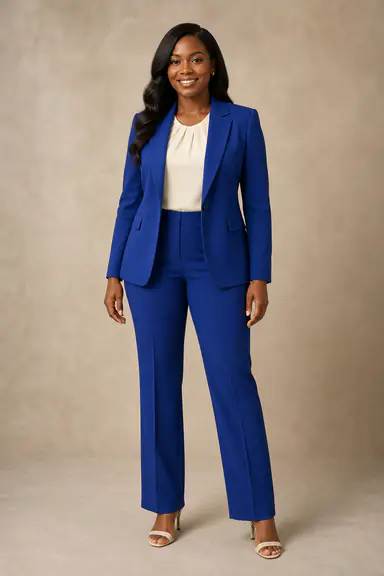
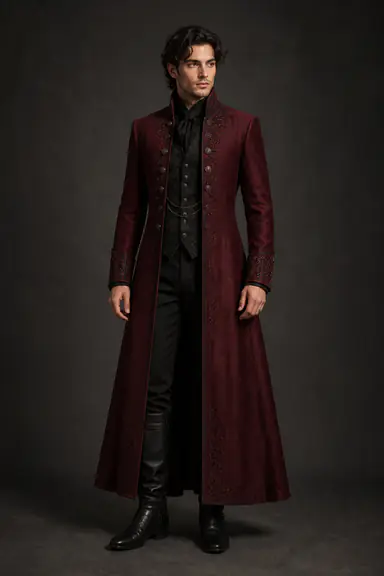
These are two available Try-On references. Modern Suit has a bright jacket and an open light neckline; Themed Evening has a dark, high collar and a longer silhouette. For a seated opening, compare the parts your actual framing can show: collar, shoulders and sleeves. A full-length reference does not mean your camera will show the whole garment.
The pictured people supply clothing references, not the identity you are trying to become. In your live AI filter result, compare your face with your camera input as well as checking the outfit. The two images below are gallery references, not generated before-and-after results from this rehearsal.
Modern Suit
The blue jacket separates clearly from the light top. In your result, follow that boundary while you talk, then check whether the shoulder and lapel remain readable as your forearm passes across them.
Themed Evening
The burgundy coat and high, dark collar suggest a more theatrical host. In the same framing, check whether the neck and collar remain distinct and whether the sleeve keeps a coherent outline when you lower your arm.
Keep the comparison about the clothing.
Prepare the camera with AI off. For a useful live AI filter comparison, keep your real clothing, chair position, camera, lighting and model unchanged between the two takes. Mark a comfortable starting position you can return to without changing the crop.
01
Frame the movement you will compare
Open your camera and choose the intended device. Frame your face, shoulders and enough of your upper body to include the full forearm gesture. Face the same light for both looks. Make the small turn in the local preview before starting AI, and keep your face visible throughout.
If the hand or shoulder leaves the input frame, adjust the camera now. If that happens only in one recorded pass, reset and repeat it; the two references cannot be compared fairly when their movements are cropped differently.
02
Select the clothing task and voice settings
Choose Try-On in the studio. Saved preferences may reopen another effect, so check the selected mode. Enable Record microphone before starting if you want to keep the spoken welcome, and select the intended microphone. Turn off Auto record for the manual two-take sequence below. Sign in and check the displayed model rate and available balance.
A live AI filter changes the picture. The microphone records your own voice. Keep the same model and audio settings between takes; changing the reference should be the main difference in this comparison.
Give both looks the same movement test.
Use the same sequence for both outfits. Say the full welcome at your usual pace, raise one forearm across your upper body, lower it, then turn slightly and return to the camera. Choose movements that belong in your real introduction. A garment that looks good only while you hold still may not work for the speaking take.
Follow the garment through a complete speaking sequence
Moment
What you do
What you check
Deliver the welcome
Face the camera and say the complete sample line.
Listen for the whole sentence. Watch the neckline while the mouth and shoulders move; check that your face remains recognizable.
Raise one forearm
Bring a forearm across the upper body, below your face.
Follow the sleeve edge where it overlaps the jacket. Notice a hand blending into fabric or a collar being pulled out of shape.
Lower the arm
Return the hand to its original resting position.
Check whether the jacket front and sleeve return to a coherent appearance instead of keeping an extra fold or fragment.
Turn and return
Turn slightly, then face the lens and hold the ending pose.
Compare the shoulder outline and collar on the way back. Keep the movement range you actually need for the final opening.
Existing Try-On effect demonstration, shown without sound. It illustrates clothing changes in moving camera footage; it does not show this story opening or results made from the two references above.
Replay the change between poses.
Watch how clothing meets the neck, shoulders and moving arm. In your own live AI filter clip, replay the transition back to your starting pose. You need to know whether the look remains usable through the movement and recovers afterwards, not only whether one paused frame looks appealing.
Record two separate takes.
Make one complete live AI filter recording per reference. Stop the first recording and end AI before selecting the second outfit, so you can identify each clip and repeat the same performance.
01
Take A: Modern Suit
In Try-On, choose Modern Suit from the reference gallery; use More if it is not in Quick picks. Start AI and wait for your own moving result. Check the current clothing in the output, then choose Record clip. Say the sample line and complete the four movements above. Stop recording, then choose Stop AI before reviewing or changing the reference.
Note the recorded clip number as Take A: Modern Suit. The idle demonstration is not your take. Check the recording rather than assuming the reference picture has transferred identically to your body or room.
02
Take B: Themed Evening
With AI ended, select Themed Evening in the Try-On gallery. Keep the camera, model, real clothing and microphone settings from Take A. Return to the same starting position, start AI and confirm your new live result. Record the same line, gesture and turn, then stop recording and choose Stop AI. Note this clip number as Take B: Themed Evening.
The live AI filter comparison now has two complete speaking takes. If you notice a framing mistake, keep the other settings fixed and repeat the affected pass. The studio keeps separate clips; it does not automatically rank the looks or build a side-by-side comparison video.
Choose the take that works in motion.
After ending AI, wait for the latest clip to finish saving, then choose Review & download to reach Recorded clips below the studio. Select the clip number you noted for Take A and play it in the Review & download player, then select Take B. First listen to the complete welcome. Then inspect the collar during speech, the sleeve where the arm crosses the body, and the return from the turn. Use the same questions for both outfits; compare the downloaded files at your intended sharing size before making the final choice.
The welcome is silent in playback
Unmute the clip player, check your device volume and replay the welcome. If it is still silent, use Download original and play that file outside the studio. If speech is missing there too, choose Stop AI if AI is still running. In Recording settings, enable Record microphone, select the intended input and check its physical mute switch and browser microphone permission. Keep the affected take's reference, framing and movements, then start AI and record the full welcome again. Replay the new clip with sound before continuing; repeat both takes if both were silent. Editing cannot restore speech that was never recorded.
One outfit holds through the gesture; the other breaks
Keep the coherent take if it also fits the tone of your opening. For the other look, try a simpler garment reference or a smaller gesture that still communicates your line, then repeat that complete pass.
The result takes on the reference person's face
Compare with the local camera input and confirm Try-On is selected. Try a clothing reference with a clearer garment and repeat the same speaking test. Keep only a take where the person is recognizable enough for your intended use; the mode's intention is not a guarantee of identity preservation.
The lower garment is missing from both takes
Decide whether your actual opening needs to show it. For a seated upper-body shot, compare the collar, shoulders and sleeves. If the coat length matters, widen the camera view and redo both takes with that same framing.
The input is already dark or the sleeve is hidden
Fix the light or camera position before replacing the reference. A live AI filter comparison cannot distinguish two clothing looks usefully if the same important detail is missing from the camera input.
The face or room changes more than you intended
Check the active effect and the full result, including the background. Try a more focused reference if you want a clothing-led change. If the extra changes are unsuitable for the final clip, reject that take rather than judging it only by the outfit color.
If a take fails during the welcome, end AI before adjusting anything. Return to your original camera position and use the same line and movement. Change the failed reference or one input condition, then record again. If you change the crop or lighting, repeat both looks before treating them as a matched comparison.
Keep the live AI filter take that communicates the opening and holds together through its actual gestures. Trim an empty lead-in or the reach to stop recording if the performance itself works. If the clothing changes shape during the line, trimming the ends will not repair that section; repeat the take with the adjustment you identified.
Select the chosen clip, open Trim & adjust audio (or Trim video for a silent recording), and set Start and End to remove only the unwanted edges. Choose Play selection and check that the whole welcome and gesture remain. Choose Prepare edited MP4 and wait for it to finish. Use Download MP4 for a computer copy, or Save to phone in the selected clip’s review panel to scan and download the edited video on your phone. Replay the welcome with sound and check the collar and sleeve movement at your intended sharing size. To keep the untouched take, use Download original MP4 or Download original WebM, as shown for that recording. If MP4 preparation is unavailable in your browser, keep the original file. Open the downloaded file and check picture and speech before leaving or refreshing the studio tab.
Replace the sample welcome with your own introduction and use the gestures that belong in it. Keep the same comparison method: one camera setup, one performance and two clothing references.
This studio offers Face Swap for a reference character, Restyle for artistic treatment and Try-On for clothing. Each uses a live camera and a reference image. Choose the effect for what you want to change, then judge the generated video; surrounding details or identity can also change unexpectedly.
Can I use a live AI filter on a video I already recorded?
This workflow uses a live webcam. An uploaded photo supplies the reference appearance, style or garment; it is not an existing video to edit. You can record the generated live result, but uploading a finished video for conversion is not supported here.
Can I compare my own clothing references?
Yes. Select Try-On and upload a clear image of the outfit you want to preview. For a clothing photo on your phone, sign in on your computer, then use Upload from phone to scan and send it to the studio, then check that the intended reference is selected. Repeat the same camera position, line and gesture for each reference, stopping AI before changing it in this walkthrough. Judge the resulting collar and moving sleeves, not only the uploaded photograph.
Does the live AI filter predict clothing size or fit?
No. The outfit result is a generated visual preview. It does not measure your body, determine a retail size, test fabric or show how a real garment will fit. Use the rehearsal to choose an on-camera appearance for a clip, rather than treating it as a purchasing measurement.
Does the live AI filter change my voice?
No. Record microphone keeps your own speech when enabled before generation. The editor can adjust recorded audio timing, but it does not generate a new voice or repair clothing details. Check the complete spoken opening when reviewing your chosen take.
Can I try the live AI filter before recording?
You can prepare the local camera before AI starts. Eligible new accounts can try generation with welcome credits under the current offer terms. Check the selected model's displayed rate and your balance. AI uses credits while running, even between recordings; choose Stop AI while comparing takes or making a longer setup change.