Use this filter webcam for taking photos with AI face, style or outfit effects. Choose a reference, open your camera and sign in to start AI. Preview your new look as you move, then choose Save screenshot when the expression you want appears. Your photo downloads as a PNG.
Live studio
IdleIdle
Sign up to try it with free credits.
Automatic recordingChecking browser capabilities…
Recording settings
Recording framing preview
Checking browser capabilities…
Checking live preview support…
01 / A WEEKLY UPDATE GREETING
One greeting for your weekly update.
A filter webcam for taking photos is useful when one expression needs to carry a message. Here, make a landscape character greeting for the top of a weekly project update. The picture welcomes readers before the text explains what changed. Choose a look that remains readable when the image is small, silent and still.
DEMO FRAME · 5.0 s
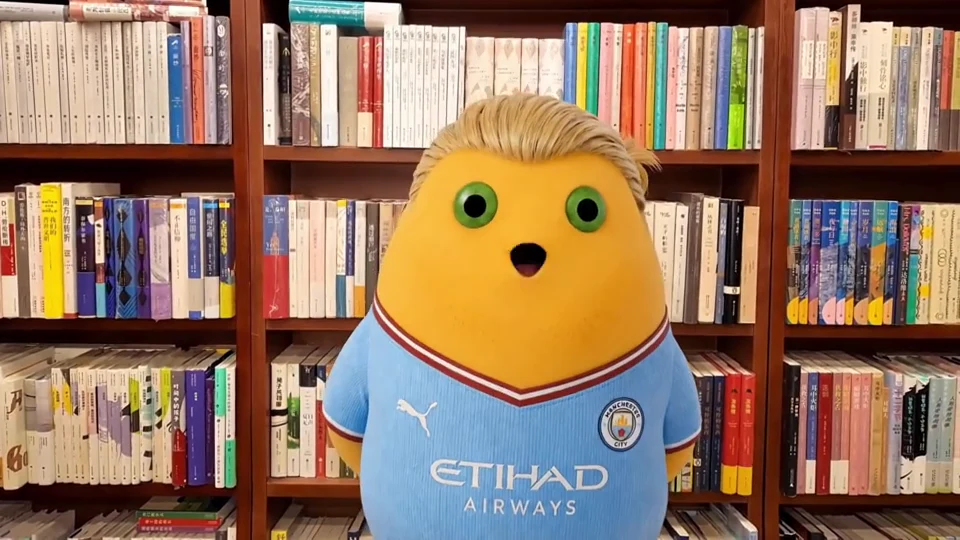
A rounded, open mouth
The open mouth is easy to notice, but it can read as surprise or an unfinished word. That may suit an unexpected announcement. For a routine weekly greeting, it introduces a stronger reaction than the message needs.
DEMO FRAME · 5.5 s
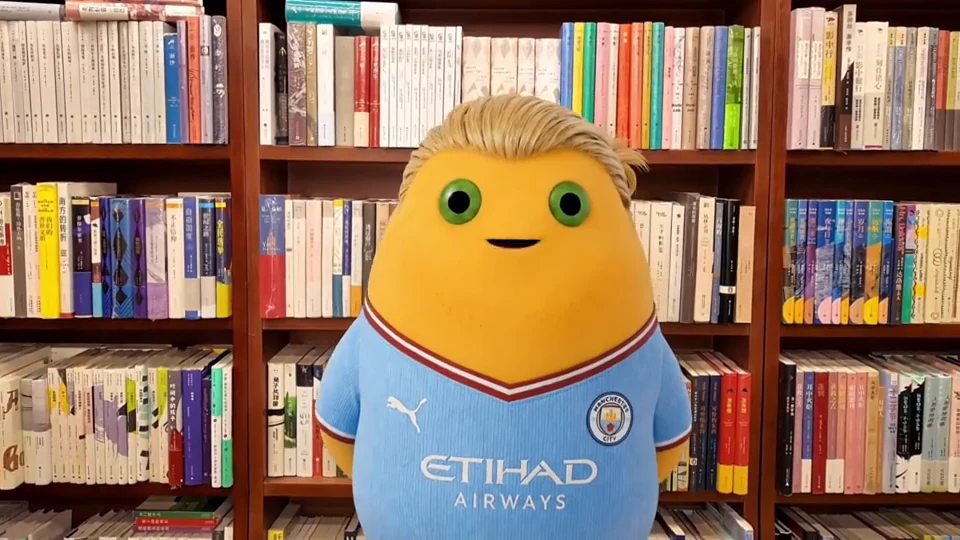
A small smile
The small smile better matches a calm welcome at the start of a weekly update. The character's face is unobstructed; the surrounding shelves still occupy much of the image, so this choice also needs a check at the intended display size.
Two moments from our character-effect demonstration, at 5.0 and 5.5 seconds.
The choice for the opening image
For a friendly weekly greeting, favor the small smile at 5.5 seconds. Both frames are clear, but the rounded mouth at 5.0 seconds suggests surprise or a word in progress. When using a filter webcam for taking photos of a greeting, judge the expression against the message. Then reduce the image to its intended size: the face should remain more noticeable than the books behind it.
Try this brief with your camera in Live Face Swap: keep the same wide frame while comparing expressions, then judge your chosen photo in the update draft.
Watch the source demonstration
02 / COMPOSE THE STILL
Frame a landscape greeting.
Before using a filter webcam for taking photos, check the shape of the space your picture will fill. This update needs a landscape image. Leave room for the character's hair and costume while keeping the face prominent. Check the saved picture in the draft layout; a full-size preview alone cannot tell you whether the greeting will read clearly there.
Set up the landscape opening image
Set this filter webcam for taking photos to Landscape in Video settings before starting AI. The example uses a 16:9 frame; keep that shape while comparing expressions. If your update template crops differently, leave room for that crop. Arrange the final image in the document or publishing tool where you prepare the update.
Make the greeting readable at a smaller size
Use the preview in your filter webcam for taking photos to balance the face against the room. If shelves or small objects attract attention before the smile, move closer or reduce unused space. Keep a margin around the head so a larger face does not come at the cost of the hairstyle or costume readers should recognize.
Preserve the character's defining details
In the filter webcam for taking photos, check the space above the hair or hat and around the shoulders. Bring a greeting hand closer to the face if an extended arm falls outside the frame. Mirror output changes the saved pose's direction. Check lettering separately: mirroring can reverse it, but cannot repair letter shapes changed by AI.
03 / MAKE YOUR OWN PHOTO
How to use a filter webcam for taking photos
With a filter webcam for taking photos, save the expression visible in the AI output rather than anticipating your next movement. Hold a relaxed greeting while reaching for the save control. Keep the reference and camera position fixed between attempts so the photos give you a useful comparison for the same weekly update.
01
Prepare your camera and reference
Choose an effect in the filter webcam for taking photos: Face Swap for a reference character's appearance, Restyle for the scene's artistic style, or Try-On for clothing. Pick a gallery reference or upload your own, then open the camera. For this weekly greeting, select Landscape before starting AI and check that the character details you want will fit.
02
Wait for your live AI result
Sign in and start AI with available credits. Your filter webcam for taking photos needs to show your own transformed camera picture before you capture it. The built-in example video is only a demonstration. For this opening image, wait for a complete face and a relaxed greeting within the wide frame.
03
Hold the expression and save
When the greeting appears, choose Save screenshot in the filter webcam for taking photos and hold your pose through the save action. Recording a video is unnecessary. To compare a second expression, keep the framing and reference unchanged, take another photo, and choose between the downloaded images for your update.
04
Open your photo
Open the PNG in your browser's download location to confirm it saved correctly. Once the filter webcam for taking photos has produced the images you need, choose Stop AI. Compare the files on your device after the session ends.
04 / KNOW WHAT YOU SAVED
One image, ready to inspect.
This filter webcam for taking photos saves the current AI picture, including its framing and mirror setting. The browser window and page controls stay outside the PNG, leaving an image you can place in your update.
File format
PNG image
Image source
Current AI output frame
Composition
Output framing and mirror setting
Sound
None — a single still image
Check detail at the size you need
Judge a filter webcam for taking photos by the downloaded image as well as the preview. Open the PNG at its actual dimensions, then place it in your update draft. If the original is clear but the greeting disappears when reduced, make the face larger in the frame. If facial detail is already soft in the PNG, inspect the camera input and reference. Saving as PNG or enlarging the browser preview cannot add detail missing from the AI frame.
05 / REVIEW THE DOWNLOADED PHOTO
Judge the photo in your update.
After using the filter webcam for taking photos, place your chosen PNG above the opening paragraph in the update draft. Check both the full-width version and the narrowest layout readers will see. Can you read the smile, recognize the character and retain important hair or costume details? Use the decisions below to identify what needs another attempt.
What you notice
Next step
What to check
Both images are clear, but one expression feels too surprised
Choose the frame that fits the greeting
The smile at 5.5 seconds fits a routine weekly welcome; the open mouth at 5.0 seconds could suit an unexpected announcement. A filter webcam for taking photos lets you try both, but your message decides which one to keep. Sharpness alone does not tell you whether the expression is appropriate.
The smile is clear at full size but disappears in the update
Increase the face's share of the frame
Return to the filter webcam for taking photos and move closer, keeping the character details you need inside the frame. Save another image and compare both at the same small size in the update draft. If the original is already clear, adjust composition before replacing the reference.
The landscape crop removes hair, a hat or a greeting hand
Adjust distance or pose
Move back or bring the hand closer to your face before saving another image. If that makes the face too small, simplify the gesture instead. A filter webcam for taking photos captures the current AI frame; a later crop cannot recover the hat or hand that was outside it.
Books or room details attract attention before the face
Remove competing details
The demonstration's bookshelves create many colored shapes. Before another attempt with the filter webcam for taking photos, remove unrelated objects or position yourself against a quieter background. Keep your expression and framing similar. At the update's display size, the character should attract attention before the background.
Keep the photo when the greeting remains readable in the update's smaller layout and the landscape crop preserves the character's defining features. Choose the small smile for a welcoming opening; save a surprised expression for a message that calls for it. If the photo already meets the brief, another attempt is unnecessary.
Can I use a filter webcam for taking photos without recording a video?
Yes. Save screenshot captures a single PNG from the live AI result without starting a recording. Choose Record a video only when you also want to keep the movement.
Which effects can I use for a webcam photo?
This filter webcam for taking photos offers Face Swap, Restyle and Try-On with reference images. They change a character's appearance, the scene's artistic style or clothing. Preview the result before saving. These are AI effects, not a collection of every conventional color, beauty or sticker filter.
Why is Save screenshot unavailable?
The filter webcam for taking photos must have an AI output frame and an applied reference before Save screenshot is available. Opening the camera or watching the example is insufficient. Choose a reference, sign in, start AI and wait for your transformed picture. Resolve any studio error before saving; a loading preview is not a finished photo.
Is taking an AI webcam photo free?
Camera setup in this filter webcam for taking photos is free. Eligible new accounts may use welcome credits under the current offer terms. AI generation uses available credits until you choose Stop AI; saving a photo does not end the session. The account, plans and credit packs are shared with the main studio.
Do I need to enable the microphone?
No. You can leave Record microphone off when taking photos. A PNG contains a single image and no audio.
Can I apply these effects to an existing photo?
This filter webcam for taking photos uses your live camera as the source. An uploaded image supplies a face, style or clothing reference; it does not open an existing photograph for editing. To make a new picture, pose in front of the camera, preview the AI result and save a frame.
Will changing the reference update a photo I already saved?
No. Each PNG keeps the pixels captured at that moment. Changing the reference, framing or mirror setting in the filter webcam for taking photos affects your next capture. Make a new photo with the changed setup and compare the downloaded files; the earlier image stays unchanged.
Filter Webcam for Taking Photos — AI Effects & PNG