Webcam Photos and Filters lets you try an AI look on your live camera and save individual pictures as PNGs. Choose a reference, preview your expression and capture the frame you want. For a small photo series, keep one look while changing the message each picture conveys.
Live studio
IdleIdle
Sign up to try it with free credits.
Automatic recordingChecking browser capabilities…
Recording settings
Recording framing preview
Checking browser capabilities…
Checking live preview support…
A THREE-PICTURE PLAN / COMMUNITY REACTIONS
Give every photo a different job.
Make three reaction pictures for a creator's community posts: a welcome, a quiet approval and a surprise. Each should do a different job while looking like the same character in the same sitting. This is one way to use Webcam Photos and Filters; a single portrait is also enough when that is all you need.
01
Welcome
A friendly opening
Face the camera with a relaxed smile. Keep this first picture simple so it can establish the character's face, clothing and size in the frame. Choose the saved result that feels inviting at the size you plan to use.
02
Approval
A visible ‘nice one’
Hold one thumbs-up beside your shoulder, keeping the whole hand inside the frame and away from your face. Stay at the same camera distance. Wait until the transformed preview shows a readable thumb before saving. Check the downloaded PNG at posting size: the gesture should communicate approval even without a caption. A nod is harder to read in a single still.
03
Surprise
An unexpected moment
Try a slightly open mouth or raised brows without leaning into the camera. Inspect what the transformed face actually shows. If it looks too similar to the welcome picture, change the expression rather than switching to a different character.
Use Live Face Swap with your own camera and chosen reference to make the pictures. The plan gives you three intentions; your saved results decide which expressions are worth keeping.
READ THE GROUP, THEN THE DETAILS
Same room. Not the same set.
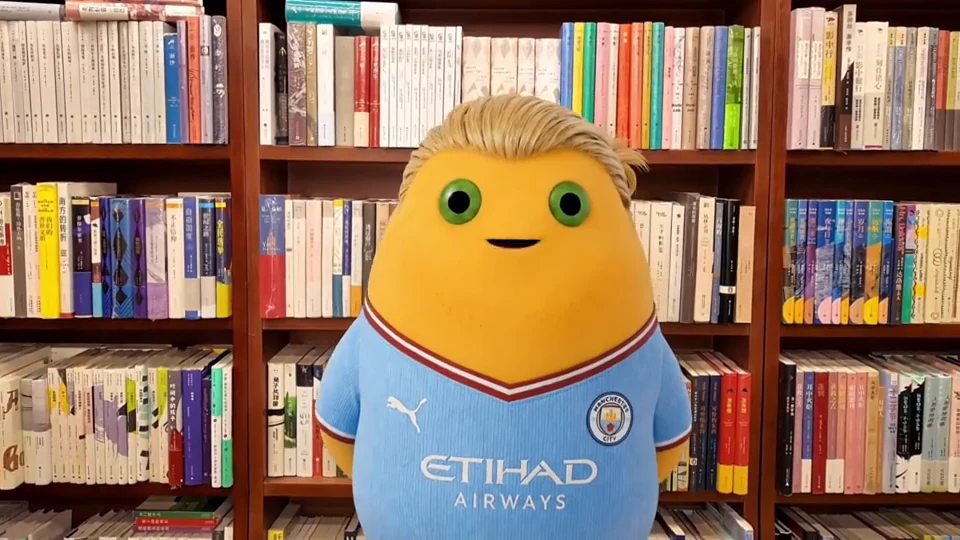
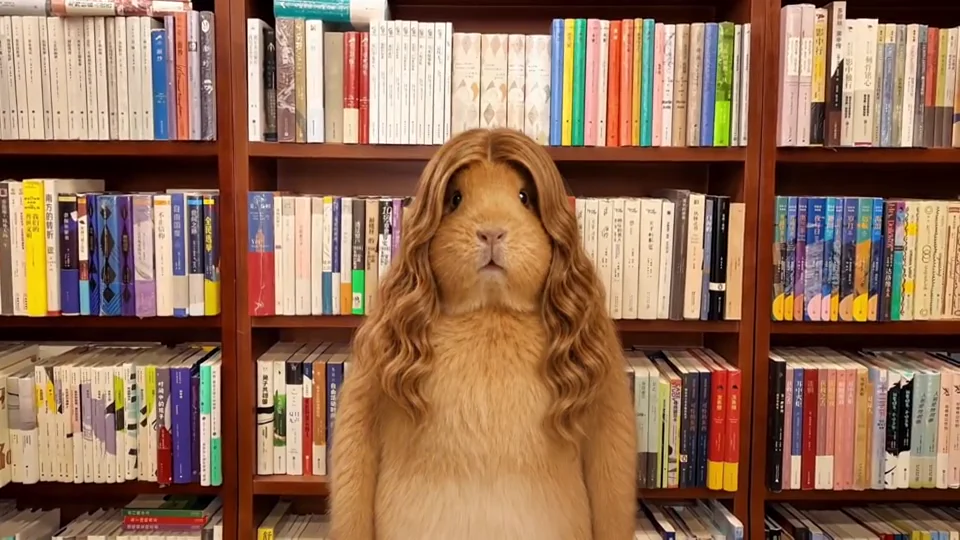
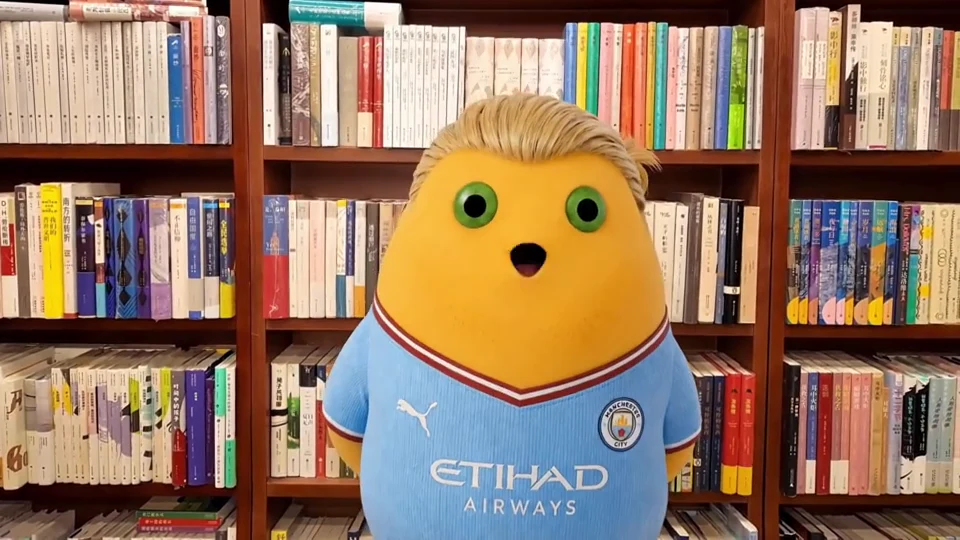
Look at these three pictures as a group before judging any one expression. The bookshelf and warm colors are similar throughout, but the middle character belongs to a different visual family. A shared background alone does not make a matching set.
Demo frame · 05.50s
01
Welcome candidate
The small smile is a candidate for the welcome picture. Green eyes, swept hair, a round yellow face and a blue shirt establish the features to carry into the other reactions. Use those features as the baseline, rather than matching only the room.
Demo frame · 08.50s
02
Set aside for another series
The bookshelf still fits, but the fur, muzzle, hair and body silhouette introduce another character. Keep this picture for a different series if you like it; it does not extend the yellow character's reactions.
Demo frame · 05.00s
03
Surprise candidate
The open mouth can suggest surprise while the yellow face, green eyes and blue shirt remain recognizable. Keep it as a candidate if that expression reads clearly at the size of your post. Together with the smile, it gives you two reactions; it does not fill the approval slot.
Frames at 5.5, 8.5 and 5.0 seconds from the existing character-effect demonstration, deliberately grouped for this comparison. They are not three captures from a user session or an example of an AI failure.
Two candidates. One missing reaction.
For this yellow-character set, the small smile at 5.5 seconds is a welcome candidate; the open mouth at 5.0 seconds is a surprise candidate. Set the furry portrait aside for another series. Approval is still missing: retake that picture with a clear thumbs-up, then compare the downloaded PNG with these two candidates.
The approval signal is visible
The raised thumb is distinct, the hand is recognizable and the face stays uncovered. Check the actual PNG, not just the pose you performed.
The picture belongs with the other two
Look for the same yellow face, green eyes and blue shirt at a similar scale. For your own set, compare the defining features of your chosen character.
It adds a third meaning
At the intended post size, the gesture should read as approval alongside the welcoming smile and surprised mouth, without a filename explaining the difference.
Before taking more pictures in Webcam Photos and Filters, choose one saved photo as your visual reference for the set. Use it to compare later PNGs. This is a file you review yourself, not a control that locks AI identity across frames.
Character and treatment
Keep the mode, reference and model the same while making the set. Compare distinctive features in every saved picture: a hairstyle, a collar or the shape of the eyes. Reusing a reference helps you make a fair comparison, but does not guarantee identical details.
Camera position and scale
Keep your chair and camera in place, with the same frame orientation and mirroring. The Format and Mirror recording controls under Recording settings also shape the saved PNG. Compare the head's size and position across pictures; a sudden close-up can dominate the group even when its expression is good.
Light and background
Avoid changing the room lighting between shots. If one picture becomes noticeably darker, inspect your camera input before changing the effect. A hand near a lamp or a turn away from the light can matter more than the reference choice.
Expression and meaning
Let the reaction change. Keep enough difference that each picture earns its place, while leaving the main character features readable. Two nearly identical smiles may be good photos individually but add little to a three-picture set.
Existing effect demonstration. It shows several looks, not an automatically generated matching photo set.
WATCH THE IDENTITY, NOT JUST THE SCENE
A reference is a starting point.
The existing demo moves through several characters in one room. Watch the face shape, hair and clothing as well as the mouth: the scene can stay familiar while the identity changes completely. For your own series, keep the chosen effect and reference instead of treating every new look as another member of the set.
Use Webcam Photos and Filters one picture at a time. A first acceptable photo gives you a baseline; later saves should add a distinct reaction. You do not need to record a video or keep generating while you compare downloaded files.
01
Save a baseline you want to repeat
Choose the effect and reference, set your framing, then inspect the live AI result. Save one clear picture before attempting the other expressions. Open its PNG to check that the character and composition are worth carrying through the rest of the series.
02
Change the reaction, keep the setup
Use the three-shot plan as a prompt for your performance. Wait for the preview to show the expression you want, then choose Save a frame for each picture. The saved image is the current AI frame, so judge that frame rather than assuming it matches your physical expression exactly.
03
Stop AI and compare the files
Saving a PNG does not stop the AI session. Choose End when you have enough candidates, then compare the downloads outside the studio. Rename the chosen files, for example welcome.png, approval.png and surprise.png, so each has an obvious purpose. The tool does not automatically assemble or package them.
04
Return for the missing picture
In the worked example, the missing picture is approval. Keep your welcome and surprise candidates, then use the same reference and a similar setup for the thumbs-up shot. If the hand is clipped or unclear, move it beside the shoulder, hold still and inspect another preview. Keep the retake only when it meets the three checks above. Before another AI session, check the selected model's credit rate.
Compare downloaded files with AI stopped. Check the displayed rate before starting a retake.
Review your Webcam Photos and Filters downloads together at the same display size in your image viewer or draft post. Start with the most noticeable mismatch, then check its likely cause. A different expression is useful; an unrelated identity or an accidental change of scale may not be.
One face no longer looks like the same character
Check first Compare the reference, mode and model, then the saved facial details.
Restore the intended setup if it changed. If it did not, simplify the pose and inspect another preview. Keep the matching files; replace the outlier only when the new result belongs with them.
One picture is much tighter or darker
Check first Compare the original PNGs at equal display sizes before judging the effect.
If only your post layout enlarged it, adjust that placement. If the original frame is closer or darker, restore your camera distance or light and retake. Changing references first can introduce an unnecessary second difference.
The three reactions all communicate the same thing
Check first Read each face without relying on its filename or a caption.
If approval looks like another welcome, try a stationary thumbs-up beside the shoulder and inspect the saved hand and face. Keep the clear welcome and surprise files while you work on this missing signal. Leave an unclear retake out of the set; a third file is useful only when it adds a readable reaction.
A small detail flickers or changes between saved pictures
Check first Inspect important features at normal viewing size, then enlarge the doubtful area.
Retake if the change distracts from the expression or changes the identity. A tiny background variation may be acceptable for a casual post. Do not keep generating merely to make every incidental pixel identical.
A set is ready when the pictures read as one character, the reactions are distinguishable and none looks accidental beside the others. Keep the files that work. If only one is missing, return to Webcam Photos and Filters with that specific shot in mind.
Can I take just one picture with Webcam Photos and Filters?
Yes. Choose a look, preview your camera and save a PNG. The three-picture series is an example for people who need related reactions; it is not a minimum batch size or a separate product mode.
Will the same reference keep every detail identical?
No. AI output can change with your pose, expression, lighting and scene. Keeping the setup similar makes differences easier to identify, but it is not an identity lock. Compare the actual saved photos and select the ones that work together.
Does Webcam Photos and Filters create all three pictures at once?
No. You perform each expression and save individual frames from the live AI preview. There is no automatic three-shot capture, collage builder or photo ZIP export. Arrange or share your downloaded PNGs in the app where you intend to use them.
Can I add a filter to photos I already have?
This workflow takes new pictures from a live camera. Upload supplies a reference for the effect; it does not open an existing photo as an editing canvas. To make another version, preview your camera with the selected reference and save a new frame.
Can I mix Face Swap, Restyle and Try-On in one series?
You can save separate pictures from different modes. Stop AI before switching, then wait for the controls to unlock. For a consistent character set, begin with one mode; a collection of deliberately different looks is a different creative goal. The modes do not stack on a saved PNG.
Do I need to keep AI running while I choose my photos?
No. Download the frames you need, stop AI and compare the files locally. Live AI uses credits at the displayed model rate, and saving a screenshot does not end the session. Starting another session for a retake uses available credits under the current plan.
How do I know when the photo set is finished?
Check the images together in their intended setting. Keep the set when the identity is recognizable, each expression has a purpose and no frame has a distracting mismatch. Webcam Photos and Filters can help you make more candidates, but a useful set does not need endless variations.
Webcam Photos and Filters — Make a Matching Photo Set