Filters for Photos Camera Webcam turns your live camera into a character, artistic scene or outfit preview. Choose a reference and save the transformed frame as a PNG. The invitation example below shows how to compare effects for your own picture.
Live studio
IdleIdle
Sign up to try it with free credits.
Automatic recordingChecking browser capabilities…
Recording settings
Recording framing preview
Checking browser capabilities…
Checking live preview support…
A WORKED EXAMPLE / A COSTUME-AND-GAMES INVITATION
What should the invitation say before anyone reads it?
For this worked example, make a portrait for a costume-and-games invitation. A mascot, an illustrated world and a dramatic coat suggest different evenings. Decide what guests should notice first.
Who is inviting?
A recognizable host or a fictional mascot?
What sets the theme?
The character, the whole scene or the clothing?
Where will text go?
Beside the image, with the date and details kept editable.
Choose the effect that fits your invitation: Try-On for the costume, Face Swap for a mascot, Restyle for a game world. Comparing all three is optional.
Make a photo with Live Face Swap using your own face, clothing and room. The example below explains how to choose between the results.
CHARACTER / WORLD / OUTFIT
Three ways to change your photo.
These three Filters for Photos Camera Webcam references suggest different directions. Thumbnails show reference artwork; your camera supplies the person and scene. Compare their defining details before choosing one.
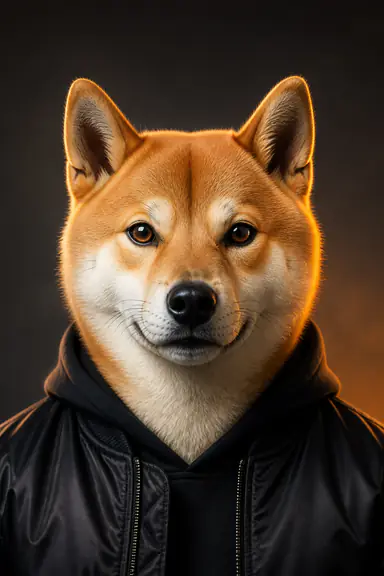
Gallery referenceStreet Shiba
Face Swap
Let a character host the evening.
Street Shiba's upright ears, pale muzzle and black jacket create a playful mascot against a simple background.
Choose Face Swap and select Street Shiba from the gallery. The reference guides the character's appearance; your camera supplies the pose and expression.
Check in your photo
Check ears, muzzle and eyes; leave cropping space. Clothing and background may differ from the reference.
When it fits
Choose a mascot when the invitation should have a fictional host. Put the real host's name in the event text.
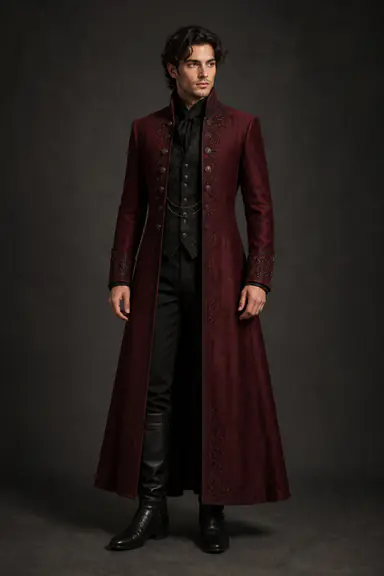
Themed Evening's burgundy coat and structured collar suggest a theatrical evening. Showing its length needs a wider view.
Choose Try-On and select Themed Evening. Frame enough of your body to show the garment detail you want to change.
Check in your photo
Check collar, shoulders, hands and face; facial details or surroundings may change. Preserve the coat in the crop.
When it fits
Start with clothing when friends should recognize the host and the costume should establish the theme. Confirm that the face still serves that purpose in your result.
Compare what each demonstration changes before choosing a mode. These clips use different scenes and are not results made with the three references above.
Restyle changes the visual treatment.
Restyle can change the person and room together. Notice whether that wider transformation supports your picture's purpose.
Try-On puts the garment in focus.
Look for the garment details that would matter in your photo: collar, silhouette and how much of the outfit fits in frame.
Should the scene or garment carry the theme? For this invitation, a theatrical coat may communicate enough without changing the whole visual world.
FROM A REFERENCE TO YOUR INVITATION
Try the look. Save the photo. Compare it in context.
For a useful comparison in Filters for Photos Camera Webcam, keep the light, camera position and pose similar. Change one input at a time so you can tell whether the reference or your setup made the difference.
01
Set one comparison question
Plan the photo: a recognizable host, theatrical clothing and a portrait beside the title. Frame the required detail, then choose Portrait or Landscape in Video settings to fit that space.
02
Preview the first direction
Start the selected effect and wait for your transformed preview. If it misses the brief, identify the cause: character, palette or framing. Adjust that input before saving.
03
Save, then change modes if needed
Save screenshot captures the current AI output, including framing and mirroring. To change modes, stop AI and wait for the controls to unlock. No video recording is needed.
04
Compare in the invitation draft
Rename the downloaded PNGs to identify each reference, then compare them in the same invitation layout. Stop AI when you have enough options; reviewing saved files needs no active session.
THE SAME PICTURE / TWO LAYOUTS
Keep the costume in view. Give the details their own space.
Before cropping your photo, decide which detail must stay visible. These two layouts use the same Themed Evening reference to show how a crop and text placement can hide the costume.
Layout illustrationLayout illustration using a gallery reference and sample event text. This is not an AI result or a built-in invitation editor.
01Tight crop, text over the picture
YOU’RE INVITEDCostume & GamesSaturday · 7 PMYour place · RSVP to the host
The coat's lower half is cut off, while the title and date obscure the remaining garment. The face reads clearly, but the costume loses its role.
02Whole coat, separate text area
YOU’RE INVITEDCostume & GamesSaturday · 7 PMYour place · RSVP to the host
The whole coat stays visible, and the text has its own space. Only the layout changed; this is not a comparison of AI generation quality.
Return to Filters for Photos Camera Webcam only if the downloaded PNG lacks the detail you need. If the coat is present but cropped away in the invitation, adjust the layout. More image space cannot recover detail missing from the original frame.
CHOOSE THE PHOTO THAT SERVES THE EVENT
The invitation is the final test.
Compare the downloaded photos in the finished layout, using the actual crop, event text and size guests will see. These checks help locate what needs changing.
What you notice
The decision
What to do next
The picture is fun, but guests would not recognize the host
Decide whether you wanted a mascot or a personal portrait
Try a clothing-focused effect when recognition matters, then inspect the face. A mascot still works for a fictional host; name the actual host in the invitation text.
The theme disappears when the image is placed in the card
Check which visual detail was lost
Open the original PNG. If it contains the detail, change the layout crop. Otherwise reframe your camera or select a reference whose defining features fit the available shot.
The reference looks right, but the output does not
Separate reference choice from camera input
If your camera image is clear, keep that setup and try another reference. If the input hides the face or clothing, correct that first. Judge the saved PNG rather than the thumbnail.
Decorative detail competes with the date or joining information
Give the picture and text separate jobs
Place the picture beside editable event text. If the background still dominates, simplify the input scene or choose a calmer reference. Keep dates and joining details outside generated artwork.
Keep the photo that communicates your brief. Once the host, theme and event details read clearly together, another generation is unnecessary.
Already settled on an effect? See how to take a webcam photo with a filter and judge expression and framing in a weekly-update greeting.
BEFORE YOU CHOOSE AN EFFECT
Questions about your photos.
How do I choose an effect in Filters for Photos Camera Webcam?
Choose by what should change: Face Swap for a character, Restyle for the scene's artistic treatment, or Try-On for clothing. Match the effect to your picture's purpose.
Can I combine the three effects?
No. Stop AI before switching modes. Each creates a separate result, without adding layers to a PNG you already saved. Download separate versions for comparison.
Do the reference images show the result I will get?
No. A reference guides the effect; your camera supplies the scene. The thumbnail does not predict your output. Inspect the actual preview.
Does Filters for Photos Camera Webcam use credits?
Yes. Check the model and rate before starting; switching modes may change them. Saving a PNG does not stop AI. Camera setup is free; eligible new accounts may receive welcome credits under current terms.
Can I upload an existing photo to edit?
Filters for Photos Camera Webcam takes new pictures from your camera. Upload supplies an effect reference, not a photo-editing canvas. Arrange the finished PNG in your design app.
Are beauty sliders or sticker filters available?
The modes use reference-guided AI transformations for characters, styles and clothing. There is no conventional beauty-slider or sticker collection. Preview the change before saving.
Can I use my photo for something other than an invitation?
Yes. Your PNG can become a personal picture, creative post or another design. Invitations are one example. Add essential text separately, since AI can alter lettering in the scene.
Filters for Photos Camera Webcam — AI Photo Effects