A webcam anime filter turns your live camera picture into an illustrated scene as you move and speak. Choose Restyle in the studio below, pick an anime style reference and open your camera. Preview how the look changes your face, clothes and surroundings, then record a take you want to keep. The reference guides the visual style; your camera provides the performance and composition.
Live studio
IdleIdle
Sign up to try it with free credits.
Automatic recordingChecking browser capabilities…
Recording settings
Recording framing preview
Checking browser capabilities…
Checking live preview support…
01 / CHOOSE YOUR VISUAL DIRECTION
Two references. Two different moods.
Start your webcam anime filter with a reference whose linework and color you can describe. A bright scene with warm light asks for a different look from a dark illustration with vivid colored shadows. Both references below are available in the Restyle gallery. Choose one visual direction first, then judge what it does to your own camera picture.
STYLE REFERENCE
Graphic Anime
Warm light · defined outlines
This reference combines warm amber light, a detailed city background and a clearly outlined figure. Use it as a starting point for a bright webcam anime filter, comparing how the palette treats your face and surroundings. The scene is a style guide: choosing it does not mean your room will become this canal or that the person in the picture replaces you.
Try it with your camera. Try a short greeting with your face evenly lit. Look at whether the warm color still leaves your eyes, mouth and clothing easy to distinguish. Then glance to the side and return to the camera, keeping the same light and position.
Keep this direction if the warm palette supports the performance without losing the features you want viewers to read.
STYLE REFERENCE
Manga Color
Cool shadows · vivid color accents
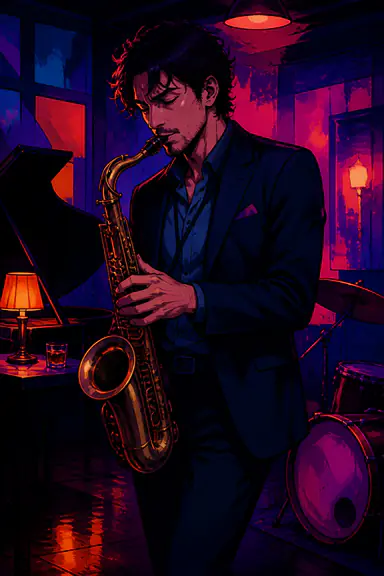
This reference uses deep blue shadows and magenta light around a musician. It offers a more dramatic direction for your webcam anime filter. Judge how much shadow your own scene can carry: a rich color palette may suit a mood, but you still need enough separation to see the face, hands and important objects during the performance.
Try it with your camera. Use the same greeting and gesture as your first reference. If the face becomes difficult to read, compare a brighter reference before making your real room darker. The camera still needs a clear input, even when the intended illustrated mood is dark.
Keep this direction if the dramatic colors leave the expression and gesture readable throughout the take.
Compare one change at a time
To compare a webcam anime filter fairly, keep your camera, room light and framing fixed. Record the same short sentence and gesture with each reference. Compare the recordings at similar moments: a relaxed face, an open mouth and the hand returning to rest. Changing the light and reference together makes it harder to tell which change helped. Keep the look that works through the full performance, not only its most attractive frame.
Use Live Face Swap to try these style references with your own camera, then keep the take that suits your scene.
02 / SEE THE WHOLE PICTURE
Watch the style move with the scene.
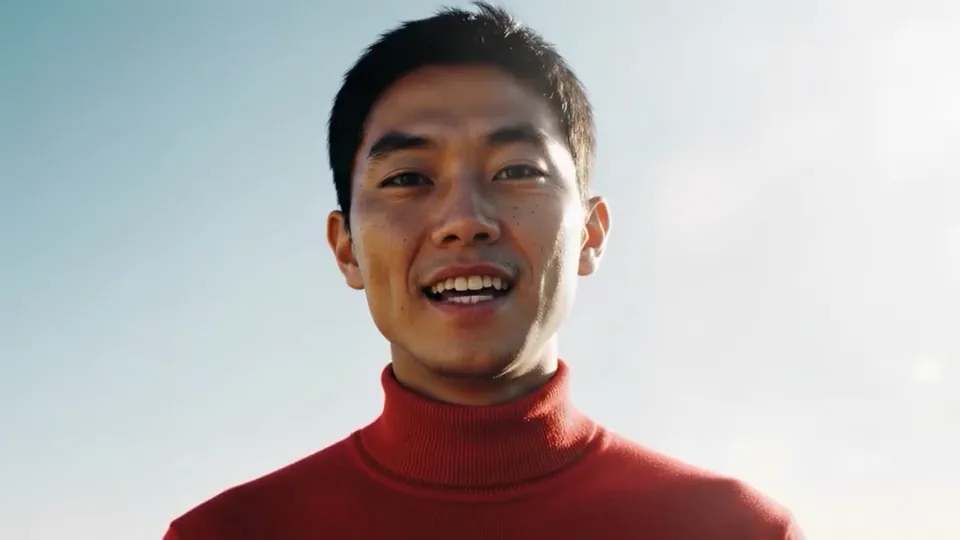
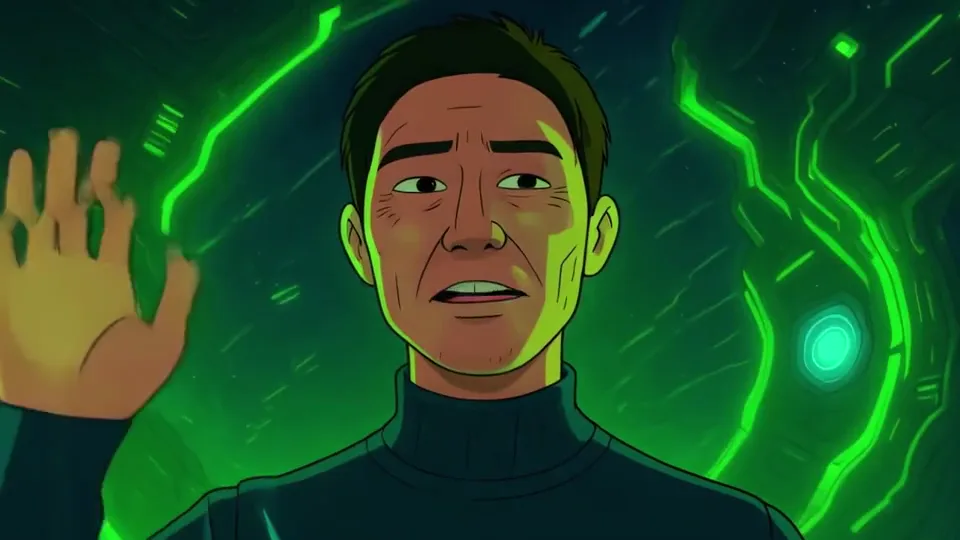
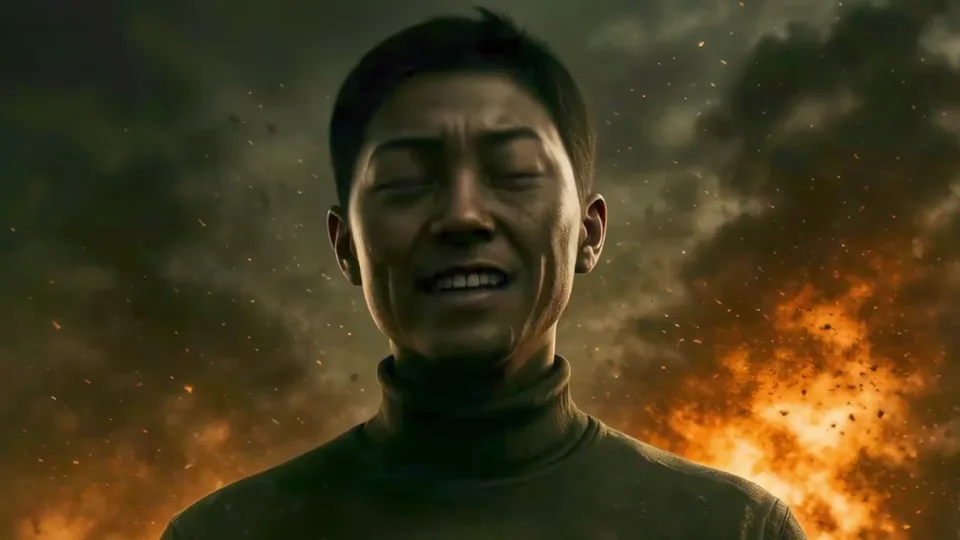
Watch this Restyle sequence move from a person against a pale background to a drawn scene with green light, then a darker cinematic treatment. The face, clothing and surroundings change together. Use these visible differences to decide which qualities you want from a webcam anime filter, then compare the references with your own camera.
General Restyle demonstration with changing looks, rather than an effect preview for the Graphic Anime and Manga Color references shown above.
What to look for
In the illustrated part, dark outlines define the face and raised hand, while green light extends into the clothing and background. Judge the entire scene rather than only the facial features.
The later frame uses shaded skin and a bright orange background. For a clearly drawn anime look, the outlined frame is the closer match here. For your own clip, also check that its colors leave the expression easy to read.
The opening frame has a pale background, a red top and an evenly visible smile. The face is the main point of attention. Use it to identify which parts of the picture change later in the sequence.
For your own scene, decide first whether the background should remain quiet or become part of the performance.
About 1.75 s
Look for a drawn treatment
Dark outlines and flatter areas of color make this frame visibly drawn. Green light appears around the face and in the scene, while the clothing is now dark. The style reaches beyond the portrait into the whole composition.
For a webcam anime filter with clear linework, this outlined treatment is a useful visual direction. In your own take, check whether the face and gesture remain readable against the stronger background.
About 3.40 s
Separate mood from drawing style
The later frame uses more natural skin shading and a bright orange backdrop. It has a dramatic mood, but its treatment is less visibly drawn than the outlined frame. The brightest area sits behind the person.
If anime linework is your priority, changing the mood alone is not enough. Pick a clearly illustrated reference, then judge whether its light and color support the expression you want to show.
Frames from different moments in the demo, shown in sequence. These are not synchronized input/output views, and a still frame cannot establish how steady a full recording will be.
03 / CHOOSE A LOOK THAT WORKS
Expression, composition and movement.
Judge your webcam anime filter at the size and framing you intend to share. A small thumbnail can hide changing edges, while a paused close-up can exaggerate a detail that barely matters in motion. Watch a complete sentence first, then replay any moment that distracts from the clip. Use these three questions to decide what to adjust.
01
Can you still read the expression?
Say a complete sentence, smile and return to a relaxed expression. Watch the eyes and mouth across those transitions. A useful webcam anime filter keeps the intended emotion readable throughout the illustrated performance. A reference with attractive eyes in a still picture does not tell you how your own speaking take will look.
Choose your next step. If the expression becomes unclear, check the unprocessed camera image first. Adjust light or distance if the features are already hard to see there. If the input is clear, repeat the same sentence with another style reference and compare the saved takes.
02
Do the person and room belong together?
A webcam anime filter can change the whole picture, so examine the clothes, furniture and background as part of the result. Decide which objects need to remain understandable. If the scene is an introduction at a desk, the face may matter most; if the room tells part of the story, its layout matters too.
Choose your next step. Move distracting objects out of the camera frame or try a simpler background, then repeat the same movement. Choose the reference whose colors and detail work across the entire composition. Do not keep a look solely because the face is appealing if the rest of the scene distracts from the clip.
03
Does the style hold through the movement?
Rehearse the movement that matters most: turning toward the camera, raising a hand or leaning forward to speak. Follow the transition and the return to your starting pose. Look for distracting changes in the outline, colors or visible objects. Review the moving clip as well as any paused frame you want to inspect.
Choose your next step. If only a large gesture causes a problem, try a smaller version and decide whether it still communicates the idea. If the style changes while you remain still, compare the input light and a second reference. Retest before recording a longer webcam anime filter clip.
04 / MAKE IT YOUR SCENE
Choose the look for what you want to say.
An anime filter for webcam video can support several kinds of performance. Set a clear goal before comparing references: an introduction needs readable expressions, a reaction needs a recognizable change of emotion, and a room scene needs a coherent background. Pick the situation closest to your clip and use its decision rule on your own recording.
An illustrated introduction
Frame a simple shot of yourself and choose the visual mood before rehearsing the first line. Use the webcam anime filter to compare a warm, open look with a darker, more dramatic one. Keep the line, camera position and delivery similar so the comparison reflects the style choice. Include your natural smile or small glance away.
Review your result. Choose the version where the audience can follow the expression through the entire introduction. If the only awkward moment is reaching for the stop button, trim it. If the opening line itself loses the expression you need, change the reference or delivery and record again.
An anime reaction clip
Choose one reaction with a clear beginning and end, such as a surprised look followed by a grin. Test it gently, then at the intensity you intend to use. Keep both takes. With a webcam anime filter, a smaller movement may communicate the reaction more clearly than a bigger one that changes the face outline throughout the clip.
Review your result. Review the start of the expression, its strongest moment and the return to rest. Keep a take that carries all three. If the effect only looks convincing at the peak, adjust the reaction or reference; trimming cannot recover a transition that never looked right.
A character in your own room
A webcam anime filter can make your room part of the story, whether you are introducing yourself at a desk or performing with a visible object. Decide which details viewers should recognize, then position them clearly within the camera frame. Compare the same composition with both style references before adding a hand gesture or more movement.
Review your result. Choose the version that gives the person and room a coherent illustrated look. If a small object becomes distracting or loses its meaning, bring it closer, simplify the background or leave it out of the shot. Repeat the relevant gesture with the new composition before committing to the final take.
05 / REFINE THE RESULT
Find the next useful adjustment.
If a webcam anime filter looks different from what you expected, identify whether the issue is already in the camera input or only appears in the transformed result. Start with the smallest useful change and repeat the same movement. These checks help you choose the next experiment; they do not promise that every reference will work with every scene.
What you see, what to check and what to try next
What you see
First check
What to try
The face is too dark to read
Input light, then the reference palette
Look at the local camera preview. Light the face if it is already dark. If the input is clear but your webcam anime filter looks too shadowed, compare a brighter reference with the camera setup unchanged.
The room competes with the face
Background detail and framing
Remove unnecessary objects from the frame or move to a simpler setting. Recheck the complete webcam anime filter picture, including the area around your hair and shoulders. Keep only the scene details that serve the clip.
The look changes during a turn or gesture
Movement range and visibility
Repeat a smaller turn with the face visible. If that meets the needs of the scene, use it. If the full gesture matters, compare another reference using that same gesture before recording the final performance.
You wanted a particular character's face
Whether style or identity is the goal
Restyle uses the reference for the artistic look of the video. If your goal is to take on the reference character's appearance, choose Face Swap instead. Compare those modes as different tasks rather than expecting a style image to act as an exact character replacement.
The result trails the camera movement
Connection and processing delay
Keep the studio tab visible and use a stable connection. Changing the drawing style is not a guaranteed remedy for delay. Review a short recording to judge the finished clip; use audio timing in the editor if the captured microphone sound needs adjustment.
For a reference character's appearance, use the AI face swap webcam and choose Face Swap.
06 / KEEP THE PERFORMANCE
Turn your favorite look into a saved clip.
Once your webcam anime filter works for the scene, keep that reference and framing for the take. Include the movements you tested and review the saved clip before exporting. Recording and AI generation have separate controls, so end AI when you finish generating, even if you want to spend more time choosing and editing your recordings.
Before recording a webcam anime filter clip, choose portrait or landscape framing and enable Record microphone if you want your own speech. Record the full sentence or gesture, then choose Stop recording & review. The microphone captures your voice; the illustrated style does not create an anime voice.
Stop AI, then make your choice
Stop recording ends the take, while Stop AI ends generation and its credit usage. Once AI has ended, compare your recordings for expression, composition and movement. Keep the best complete performance, and trim an unwanted pause at the start or end if the rest of the take works.
Save and review the exported clip
Download the original recording, or prepare an edited MP4 where your device and browser support export. Review the exported file with sound if the take includes speech. Download your webcam anime filter clips before leaving or refreshing the tab; local editing and downloading do not use AI credits.
BEFORE YOU START
Webcam anime filter questions
How do I use a webcam anime filter in my browser?
Use the studio on this page, select Restyle and choose an anime style reference or upload your own image. Sign in, open the camera and check its framing before starting AI. Watch a short sentence and gesture, then record when the result suits your scene. You do not need a separate app for this browser preview-and-record workflow.
Does a webcam anime filter change the background too?
Restyle applies the reference's artistic style to the whole live video, including the person, clothes and surroundings. Treat the background as part of the composition when choosing a look. The reference guides the style rather than guaranteeing a copy of its setting. Preview your own scene to decide which details remain useful and which you should simplify.
Is this the same as swapping into an anime character?
Restyle is for changing the visual style of your camera picture. Face Swap is the mode for taking on the appearance of a reference character. Choose the mode that fits the result you want. Neither workflow here creates a downloadable Live2D or 3D character model; the result is a live video image that you can record.
Can I upload my own anime style image?
Yes. Select Restyle and upload an image whose linework, palette and shading match the direction you want. Compare the webcam anime filter result with your intended look, keeping light and framing fixed while changing the reference. This makes the reference's effect easier to judge. Uploading an image supplies a style guide; it does not upload a video for processing.
Can I try the webcam anime filter for free?
Local camera setup is free. Eligible new accounts can try AI using welcome credits under the main studio's offer terms. Credits are used when the transformed result appears and while AI remains running, including time between recordings. Stop AI when you finish generating. Current eligibility, subscriptions and credit packs are described on the pricing page.
Why does my webcam anime filter look different from the reference?
The reference guides style while your camera supplies a different person, pose, lighting and scene. Compare linework, color and readability rather than expecting every object in the reference to appear. If the result misses the direction you want, try a more clearly styled image and repeat the same camera performance to judge the change.
Will it change my voice or create lip-sync audio?
No. Record microphone captures your own speech. You can adjust its timing in the clip editor, but that does not generate a voice or repair the illustrated mouth movement. Judge the visual expression in the preview and listen to the saved take before sharing it. Leave microphone recording off if you want a silent clip.
Can I save a webcam anime filter video as MP4?
The original recording uses MP4 or WebM according to recording support. Edited MP4 export is available where your device and browser support it. Stop AI, choose your take and prepare the export if needed, then download it. Save clips before leaving or refreshing the page because the recordings stay in the current tab.