An AI face swap webcam uses a reference portrait to change your on-camera appearance while your camera supplies the movement. Choose Face Swap in the studio below, select a face and allow camera access. Preview yourself speaking and turning before recording a take. Start with one person clearly visible in the frame.
Live studio
IdleIdle
Sign up to try it with free credits.
Automatic recordingChecking browser capabilities…
Recording settings
Recording framing preview
Checking browser capabilities…
Checking live preview support…
WATCH THE MOVEMENT
See what changes in a webcam face swap.
Watch an AI face swap webcam example through a complete expression before choosing the look you want. A still frame can show the appearance, but movement reveals how the eyes, mouth and face outline change. Use these examples to decide what to watch in your own preview, then repeat the same checks with your camera and reference.
OriginalFace Swap
Original footage and face swap example. This illustrates appearance changes; it is not a setup tutorial for the call app shown.
Follow an expression across both views
The paired example shows original footage beside a face-swapped version of the same scene. Follow the face through the movement instead of comparing only the opening frame. Look at when the mouth opens, how the cheeks change and what happens around the face as a hand moves nearby.
For your own AI face swap webcam check, start with a short greeting and a small turn. Compare the camera input with the transformed appearance. If a detail is already hard to see in your camera, improve that input first. If the input is clear, repeat the movement with one other reference to make a useful comparison.
Character effect example. Your camera, reference and movements determine your own result; this is not a preview of the reference portrait below.
Watch a character through the whole performance
This character example makes the surrounding scene part of the comparison. Watch the head outline and the space around the shoulders as well as the facial expression. When choosing a character for an AI face swap webcam clip, decide which traits need to remain recognizable while you speak, react or move back toward the center of the frame.
Try a restrained delivery before adding a larger reaction. Keep the reference, light and camera position fixed between those takes. If the quieter version works but the larger movement changes the appearance too much, you have a specific next step: reduce that movement or test another reference, then repeat the same line.
For an AI face swap webcam, two images do different jobs: the live camera carries your performance, and the reference sets the appearance you want. Checking them separately helps you decide what to change next.
YOUR CAMERA
Check the image you are sending
Open Camera & microphone to select the intended camera. If you have a built-in webcam and a USB camera, compare the local previews before starting AI. Choose the one that gives you a clear, evenly lit face at a comfortable distance.
Face a light source, keep your whole face visible and choose portrait or landscape framing before the session. If your face is dark, blurred or cut off in the input, adjust the light, position or crop first.
Keep this input when your eyes, mouth and face outline are easy to see.
YOUR REFERENCE
Choose a face you can judge clearly
Begin with a sharp portrait showing one unobstructed face from the front. Use a gallery portrait or upload your own photo. A distant face, heavy blur or a covered mouth makes it harder to judge whether the resulting appearance matches your intention.
For your first AI face swap webcam comparison, keep the camera setup fixed and try one reference at a time. Judge the result while speaking as well as while still; a convincing portrait frame alone does not tell you how a full take will look.
Keep this reference when you like its appearance through the movements you need.
REFERENCE PORTRAIT
Start with details you can actually compare
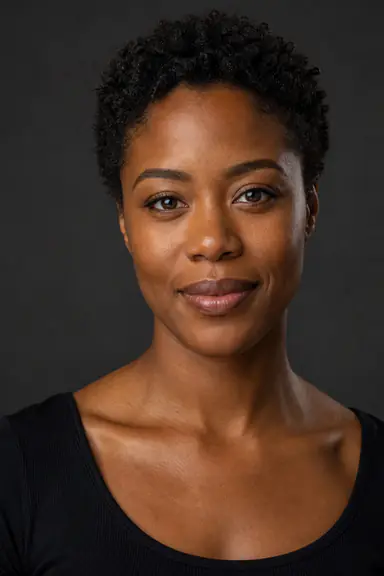
This portrait is available in the studio reference gallery. The eyes, mouth and face outline are visible, giving you specific details to look for when you review a transformed take. The portrait supplies an appearance; your live camera supplies the movement. It is a reference image, not an example of generated video.
Use the same idea when uploading your own face photo. Begin with one person, a clear front-facing view and enough detail to see the features. If you wear glasses or have hair across your face during the recording, include that in your movement check. Judge what the AI face swap webcam actually produces rather than assuming the reference will behave identically from every angle.
Compare two references using the same opening line and head turn. Change the reference between takes while keeping your camera and framing fixed. Keep the one that works across your intended performance, even if a different portrait looks more striking in the gallery.
This page uses the complete Live Face Swap studio, with the same reference gallery, camera controls and recorded clips. Select Face Swap for these checks; your saved setup may have another effect selected.
02 / WATCH WHAT CHANGES
Three checks before a longer take.
Use the same reference, camera position and lighting for all three checks. Watch the AI face swap webcam result during movement, not just at a flattering still moment. These are observation prompts, not an automatic quality score.
01
Hold still, then blink
Look toward the camera, relax your expression and blink normally.
Look for
Watch the eyes, face outline and overall appearance. Decide whether the result is recognizable and steady enough for your intended clip.
Try next
If it keeps changing while you are still, check the input lighting first. Then compare another clear reference with the same camera setup.
02
Say your opening line
Speak a short sentence at the pace you plan to use. Add a smile or expression if it belongs in your performance.
Look for
Watch the mouth through the whole sentence, especially transitions between expressions. Look for moments you would want to cut from a finished take.
Try next
If a particular expression breaks the look, try the line more gently or compare a different reference. Microphone recording keeps your own voice; it does not repair generated mouth movement.
03
Turn slowly, then return
Turn a little left and right within the range your clip needs, then face the camera again.
Look for
Check the cheek, jaw and the return to a front-facing view. Notice whether the result recovers consistently after each turn.
Try next
If the effect changes too much at an angle, use a smaller movement range or change the reference. Retest the same turn before recording a longer performance.
Keep the AI face swap webcam setup that works through your intended movements. If it only looks right when still, shorten the movement range or change the reference before committing to a full take.
Set up your AI face swap webcam for the clip you actually want to make. A seated introduction, a character reaction and a vertical short need different movements and framing. Choose the closest situation below, rehearse its demanding moment and decide whether the result holds up before recording the full take.
A seated introduction
Use an AI face swap webcam to rehearse the opening sentence of an introduction. Frame yourself as you will appear in the final clip, then say the complete sentence at your normal pace. Include the smile, glance away or small head turn you would naturally make. A frozen pose will not tell you whether the speaking take is usable.
Review your take. Listen to the sentence while watching the mouth, then replay the turn back toward the camera. If the issue only happens while you reach to stop recording, trim the end. If it appears during the introduction itself, change the reference or delivery and record another take.
A character reaction
Choose one reaction to test: surprise, a grin or a short response to someone off camera. Begin with a smaller version, then try the expression at the intensity you want. Keep both takes so you can compare the same character at two movement ranges instead of relying on a memory of the live preview.
Review your take. Watch where the expression begins and ends. If the larger reaction changes the face or takes too long to return to the chosen appearance, keep the smaller version or try another reference. A short usable reaction can be a better choice than a longer take with repeated changes you cannot trim away.
A vertical short with gestures
Choose portrait framing before starting AI and leave room for the movements that belong in your short. Rehearse a gesture near your face, a glance to the side and the return to your starting position. Keep your face in the frame throughout; checking only the centered opening pose can miss a crop problem later in the performance.
Review your take. Review the recorded framing as well as the effect. If your gesture covers your mouth at the key moment, change the gesture or camera position and repeat it. If only the start or finish needs shortening, trim the take and review the exported file before sharing it.
04 / CHANGE ONE THING
Match the symptom to your next check.
When an AI face swap webcam result looks wrong, compare it with the local camera preview first. If the input is already unclear, fix that before trying another reference. If only the transformed image changes unexpectedly, hold the setup steady and change one variable.
What you see, what to check and what to try next
What you see
First check
What to try
The local camera preview is dark or soft
Light and camera input
Move the light in front of you, check the selected camera and move to a distance where your face is clear. Recheck before starting AI.
The input is clear, but the transformed appearance drifts
Reference and expression
Repeat the still and speaking checks with one clearer reference. Keep lighting and position unchanged so you can compare.
The result changes when you turn or cover your face
Movement range and visibility
Keep your face visible and use a smaller turn. If that fits your intended performance, record a short take to review it in context.
The transformed picture trails your movement
Connection and processing delay
Keep the studio tab visible and use a stable connection. Do not treat delay as a reference-photo problem; zero latency is not guaranteed.
Your recorded voice arrives early or late
Audio timing in the saved take
Stop AI, open the recorded clip and adjust audio timing in the editor. Timing adjustment does not change your voice or regenerate the face.
05 / KEEP A USABLE TAKE
Judge the clip you plan to share.
Your AI face swap webcam preview answers whether this setup works for the performance you intend to record. Keep the reference and framing that worked in your checks, then capture a short take using the same movements.
Before recording an AI face swap webcam clip, enable Record microphone if you want to keep your own speech. Record your opening line and planned movement, then choose Stop recording & review. Judge the complete sentence with sound rather than choosing a talking take only by its thumbnail.
End AI before settling in to review
Stopping a recording leaves AI running and using credits. Use Stop AI when you finish generating. Review the take for the same eye, mouth and head-turn issues you checked in the preview.
Keep a usable take or change one thing
Trim a pause at the start or end if the rest works. If the issue appears throughout, change one input and record again. Download the take before leaving or refreshing this tab; editing and downloading do not use AI credits.
QUESTIONS BEFORE YOU RECORD
AI face swap webcam questions
Can I use an AI face swap webcam without installing an app?
Yes. This page includes the browser studio: sign in, allow camera access, select a reference and start Face Swap. Camera, recording and export support depend on your device and browser. No separate app is required for this preview-and-record workflow.
Can I try an AI face swap webcam for free?
Local camera setup is free. Eligible new accounts can use welcome credits to try the AI result under the same offer terms as the main studio. AI processing uses credits even when you are not recording. Start with a short speaking and turning check, then stop AI while you decide what to change. The pricing page explains current eligibility, plans and credit packs; this is not unlimited free AI processing.
Can I use a video file instead of a live camera?
This workflow takes video from your live camera. Uploading a photo chooses the reference appearance; it does not replace the camera input. Existing video-file face replacement is not supported here.
Does the AI face swap webcam also change my voice?
No. The effect changes your appearance. Record microphone captures your own voice, and the editor can shift its timing. Voice conversion and generated speech are not part of this workflow.
Is a local camera preview the same as the AI result?
No. Before AI starts, the local camera preview shows your input. The transformed result becomes available after the AI connection starts producing video. The example shown before that is a demo, not a result generated from your camera.
When does the preview use credits?
Local camera setup is free. Credit usage starts when the AI result appears and continues while AI is running, even between recordings. Stop AI ends that usage. Welcome-credit eligibility, subscriptions and credit packs follow the same account and pricing rules as the main studio.
Does opening this page add a camera to my video-call app?
No. This page previews and records inside the browser. Opening it does not register a system-wide virtual camera or automatically change the camera selected in another app.
How should I check an AI face swap webcam with glasses?
Include the glasses in your actual camera test if you plan to wear them in the clip. Check the eyes and frame edges while still, then repeat your speaking line and a small turn. Notice whether reflections hide the eyes in the camera input before judging the transformed result. Adjust the light or camera angle and repeat the same movement. Keep the setup that works in your own preview; results can vary with the glasses, reference and lighting.
Can I download the recording as MP4?
The original recording is MP4 or WebM, depending on recording support. You can prepare an edited MP4 where your device and browser support export. Review the exported take before sharing it.