A webcam cartoon filter gives your live camera picture an animated look while you speak and move. Choose Restyle, pick a style reference and preview the result with your own camera. You can save a frame or record a clip. For a cartoon introduction with something to show, check the object and your hands as carefully as your face.
Live studio
IdleIdle
Sign up to try it with free credits.
Automatic recordingChecking browser capabilities…
Recording settings
Recording framing preview
Checking browser capabilities…
Checking live preview support…
THE REHEARSAL / A PAPER-CRAFT OPENING
Let them see what you are talking about.
Make an opening for a paper-craft tutorial: introduce yourself, raise a five-point paper star and let viewers see what they will make. The webcam cartoon filter should make the introduction playful while leaving the star recognizable. This is a rehearsal you can try with your own prop, not a recorded customer example.
01
Introduce the idea
Face the camera and begin the line with the star held below your face. Keep your opening expression visible. Check that the local camera can already distinguish the paper from your clothes before applying the effect.
Your face is visible before the prop arrives.
02
Raise, then hold
Bring the star beside your shoulder as you say its name. Hold it by a lower edge, with the other points visible, and pause the movement. Watch the transformed picture: can someone identify the shape without being told what it is?
The viewer gets a clear look at the finished object.
03
Finish the invitation
Lower the star after the hold and finish the sentence. Keep looking toward the camera and watch the live preview for distracting changes as the hand moves away. This pass helps you settle the position and movement. Record a short test next so you can replay the complete action without performing it again.
The ending feels complete, with no rush to reach a control.
Ready to check the full movement? Record a short test, stop recording, then replay the saved clip. A clear test can be your finished introduction.
Give the prop its own space.
Begin with enough space for your face, the whole star and the hand holding it. A prop placed directly in front of your mouth hides the expression you need for the introduction. Try holding it beside your shoulder, at roughly the same distance from the camera as your face, and leave a visible gap between them.
Across the face
The prop hides the expression.
Beside the shoulder
Leave room for both the face and the star.
Framing illustration, not an AI result. Check the actual transformed face, hand and object in your own preview.
CHOOSE A TREATMENT FOR THE SCENE
Handmade warmth or a brighter toy world?
A webcam cartoon filter can take different visual directions. These are two real gallery references: one suggests handmade clay, the other a bright toy figure. Choose the treatment you like, then repeat the same line and prop movement. The pictures below are references, not previews of your finished scene.
GALLERY STYLE REFERENCE
Clay World
Soft volume · handmade texture
Rounded features, textured clothing and softly shaped boxes give this reference a handmade quality. The boxes remain easy to separate from the body. Use that separation as something to look for in your own scene, not as a promise that every prop will retain its shape.
For the paper-star opening, try Clay World when you want a gentle, crafted look. Check whether the paper's outer points remain distinct after restyling. If the star becomes a rounded lump, compare a clearer input or another style before recording the introduction.
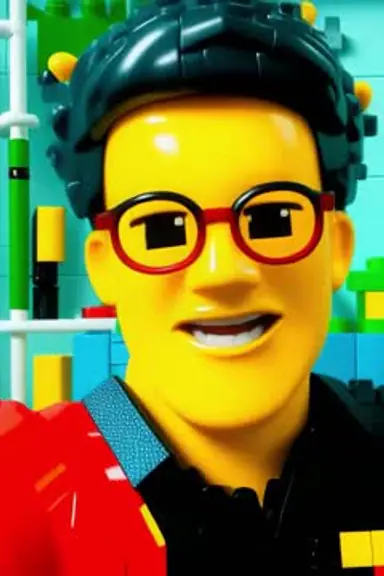
GALLERY STYLE REFERENCE
Style 3
Bold shapes · bright toy colors
The yellow face, dark glasses and red jacket create strong areas of color. The toy-like mouth and simplified features give a different visual direction from the textured clay reference. The reference character itself is not the person you are guaranteed to become.
Try this direction when the introduction should feel bright and energetic. In your webcam cartoon filter preview, check that the star still stands out from your clothing and the room. If everything becomes equally vivid, simplify the real background or compare the quieter reference.
For a drawn anime direction, explore the webcam anime filter. For this rehearsal, choose the look that keeps your face and the paper star easy to read together.
LOOK BEYOND THE PORTRAIT
See how the style changes the whole scene.
The existing Restyle demo shows that a treatment can reach the clothing and room as well as the face. Watch the raised hand and the space around the person as the look changes. It illustrates a moving style effect; it does not show the paper-star rehearsal or results made with the two references above.
Existing Restyle demonstration. It does not show this paper-star rehearsal or a guaranteed result from Clay World or Style 3.
CHECK YOUR OWN REHEARSAL
Face and prop each have a place
During your own rehearsal, leave space between your cheek and the star. Check that the style keeps them visually separate while you speak. Moving the star farther sideways helps only while all its points stay inside the frame.
A hand still looks like it is holding something
Watch the fingers where they meet the paper. If that boundary becomes confusing, try a simple grip and a slower raise. Inspect the AI result again; a successful physical gesture does not guarantee a readable transformed hand.
The room supports the introduction
Notice what attracts attention behind you. A busy pattern can become more prominent after restyling. For this opening, move unrelated objects out of view before changing the camera angle or replacing a reference you otherwise like.
RECORD ONCE. REVIEW THE WHOLE ACTION.
A short test can be the take you keep.
Once the live preview gives your face and prop enough room, make a short test with the same webcam cartoon filter setup. Record both sentences and the complete raise, hold and lower movement. Stop recording before replaying the saved clip. If the picture and speech already work, this test can be the introduction you download; another take is optional.
01
Check the preview and microphone
Use the reference and framing from your live rehearsal. For a spoken introduction, enable Record microphone in Recording settings before starting AI. If AI is already running with the microphone off, choose End, enable the microphone and start AI again. Wait for your own transformed output before recording; the idle example is a demonstration.
02
Record a short test, then stop
Choose Record clip, pause briefly, then deliver both sentences with the raise, hold and lower movement. Keep the studio tab visible. After the final sentence, choose Stop recording and wait for the clip to finish saving. The webcam cartoon filter changes the picture; microphone recording keeps your own voice.
03
Replay, then keep or retake
Stopping the recording leaves AI running. Choose End before spending time reviewing, then open Review & download and play the saved test. Keep it if the face, star and complete line are clear. Trim unwanted waiting at the edges if needed, then download and check the local file. If a check below fails, adjust that specific part and record another test; a good first take needs no replacement.
Check the selected model's credit rate before starting. End AI when you finish generating; review your files afterwards.
After stopping the test recording, play your own webcam cartoon filter clip once at the size viewers will see. First ask whether you understood the introduction. Then pause at the moment the star reaches its display position. Keep this test as your finished take if the face, object and complete line are clear; use the checks below only to decide what needs another attempt.
The face looks good, but the star covers the mouth
Change the staging
Keep the same reference and move the prop beside the shoulder. Rehearse the raise again with a gap around the face. If the outer points then fall outside the picture, move the camera back slightly and check both subjects before starting another take.
The star is clear when held still but distorts during the raise
Change the movement
Repeat a slower, shorter raise without turning the paper edge-on. Hold it front-facing long enough to inspect the output. If the input remains clear but the generated shape still changes, compare another style with the same action. Keep the take only if the object reads throughout the movement you need.
The object loses its shape even during the hold
Check the input, then the treatment
Check whether fingers, blur or similar colors hide the points in the camera input. Fix that first. If the input is clear, try a less distracting reference. Do not describe altered paper shapes as accurate craft instructions. Use unfiltered close-ups for exact folds or cuts when the stylized view cannot preserve the detail.
The picture works, but the introduction feels unfinished
Listen to the complete line
Check that microphone recording was enabled and that both sentences are present. Leave a brief pause before lowering the prop and ending the take. Trimming can remove waiting at the edges; it cannot restore missing speech or redraw a hand. Record another complete introduction if needed.
Keep the take when viewers can hear the invitation, see your face and recognize the star during the hold. If one of those is missing, return to the webcam cartoon filter with one adjustment in mind. A stronger visual effect is not a substitute for showing what the tutorial is about.
Restyle uses a reference image to guide the colors, texture, lighting and artistic treatment of your live camera picture. It can affect your face, clothes, hands, props and surroundings. Preview the entire scene rather than assuming only your face will change.
Can I use a webcam cartoon filter without a prop?
Yes. You can make a greeting, reaction or another camera performance. The paper-star introduction is a worked rehearsal for scenes where an object matters. For a simple greeting, judge the expression and background, then record the line you want to share.
Will I become the exact character in the reference?
Restyle guides the scene's visual treatment rather than guaranteeing a specific character identity. For the appearance of a reference character, use Face Swap and inspect that result separately. A clay or toy reference does not guarantee particular facial features, props or scenery.
Can I use my own cartoon reference?
Yes. Select Restyle and upload a style image. Choose one with a clear treatment you can describe and compare: rounded forms, simple areas of color or a textured surface. Your live camera still provides the performance. Uploading a picture does not turn this into an editor for an existing video.
Does the webcam cartoon filter make a 3D model or animation file?
No. The output is a live AI video picture. You can record that picture or use Save a frame to download a PNG. It does not export a rigged character, a 3D scene or editable animation layers, even when the result looks like a toy or clay animation.
Do I need credits, and when should I stop AI?
Live AI uses available credits at the selected model's displayed rate. Review the current offer and your balance before starting. Choose End when you finish generating; stopping a recording or saving a frame does not end the AI session. You can compare downloaded files without leaving AI running.
Can I use the result in calls or a livestream?
This page provides the browser studio for previewing, recording and saving your result. It does not install a virtual camera or automatically replace the camera in another app. Choose the workflow here when a live browser preview or a downloaded clip meets your goal.
Webcam Cartoon Filter — Preview & Record Your Own Scene