An AI webcam avatar changes your on-camera appearance into a reference character while you perform. Choose Face Swap, select a character or upload a picture, then start the live AI preview. Try a speaking performance, save a frame or record a clip with your own voice.
Live studio
IdleIdle
Sign up to try it with free credits.
Automatic recordingChecking browser capabilities…
Recording settings
Recording framing preview
Checking browser capabilities…
Checking live preview support…
THE HOST / A SHORT GAME REVIEW
Choose a character that can carry a conversation.
Give a short game-review segment a recognizable host. The character should welcome viewers, deliver a thoughtful opinion and react to a surprise. Choose a look that can carry all three moments. A striking portrait is a starting point; the useful result is a character viewers can follow while you speak.
Use Live Face Swap with your own camera and reference to try the brief. Your delivery supplies the timing and emotion; the tool supplies the transformed picture.
A LINE TO TRY
Welcome back. Today we're looking at a game that rewards patience. I thought I knew what came next—then it surprised me.
A suggested performance, not automatic narration or a recorded customer example.
Give the host a job before choosing its face.
For this brief, aim for a calm explanation with one expressive ending. If your own segment needs constant excitement, choose a different line that tests that delivery. The reference you prefer in a gallery may not be the one that supports your tone.
Decide whether viewers will see a large presenter or a small window beside other content. That choice gives your AI webcam avatar a practical size target before you start comparing looks.
REFERENCE / RECOGNITION AT A GLANCE
Which details still matter when the face is small?
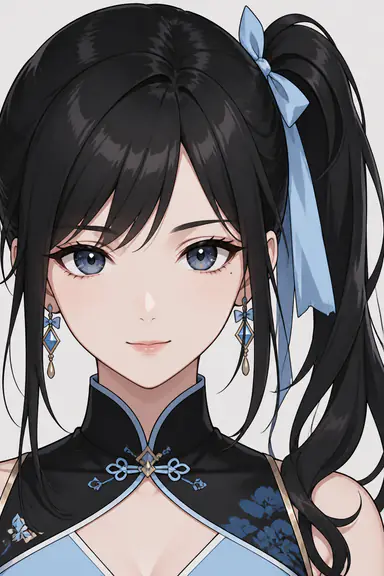
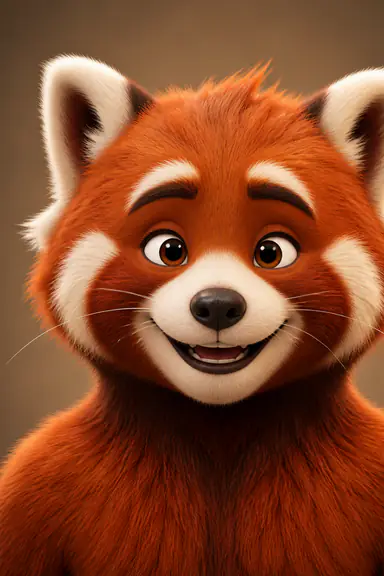
Choose an AI webcam avatar for the way you intend to appear on screen. If your host sits beside a game or presentation, its broad features matter more than tiny accessories. These two pictures are available Face Swap references. Compare their visual cues, then test the one you prefer with your own camera.
Smaller view
Ribbon Heroine · Gallery reference
A host with a distinct silhouette
The dark ponytail and pale blue ribbon give this reference a clear asymmetry. At the smaller size, those larger shapes carry more of the identity than the earrings or collar decoration. Keep enough room above and beside the head when you frame your performance.
During a small turn, can you still recognize the ribbon and hair outline? During speech, can you distinguish the mouth from the surrounding face? If only the accessory is readable, try a closer frame before choosing this as your regular host.
Smaller view
Red Panda · Gallery reference
A mascot with broad facial landmarks
The light ears, white muzzle and dark nose stand out against the orange fur. Those broad patches remain easier to notice at the smaller size than individual hairs. A mascot can make an informal review feel friendly, but the reference alone cannot tell you how well its muzzle will follow your speech.
In your AI webcam avatar result, watch a quiet explanation as well as the big reaction. If the muzzle looks expressive only when your mouth is wide open, a subtler host or a different reference may suit the full segment better.
Reference artwork shown at two sizes, with the same full-image framing. These are not generated results or a claim that either reference will reproduce every detail.
Which one to try first. For a mascot in a small presenter window, try Red Panda first: its light ears and white muzzle give you broad features to look for. For an illustrated human host, start with Ribbon Heroine and leave room for the ponytail and ribbon. These starting choices come from the reference artwork; use your own recorded delivery at the intended size to decide which result works.
Bring a reference with two clear identifying features.
For your own character, start with one clearly visible face and a readable head outline. Avoid hiding the eyes behind hair or placing several faces in the same reference. Pick two features that should identify the host at a glance, such as a pale ribbon and dark ponytail, or cream ears and a white muzzle. Use your AI webcam avatar preview to find out whether those features survive the performance.
An AI webcam avatar needs more than a pleasing resting face. Use these three beats to see how the reference handles your normal delivery. Keep the character fixed for the whole line; changing references between beats would hide the comparison you need.
01
Welcome
Welcome back.
Face the camera, make a small welcoming expression and leave a short pause. The viewer should meet a settled host before the explanation starts. Check that the resting mouth and eyes look intentional, without needing a large gesture to make the face readable.
02
Explain
Today we're looking at a game that rewards patience.
Say the line at your normal speaking pace. Briefly glance toward where the game would sit, then return to the lens. Watch whether the reference's defining features remain recognizable through the turn and return. You are testing an ordinary hosting movement, not the largest turn the effect can attempt.
03
React
I thought I knew what came next—then it surprised me.
Let the final phrase carry one clear reaction, then settle back to your resting expression. Compare that ending with the opening. An AI webcam avatar is more useful for this brief when both moments belong to the same character, even though their expressions differ.
Existing effect demonstration · not a test of the references above
Notice broad features before fine detail.
Watch the existing character-effect demonstration for broad shapes: the head outline, the eyes against the face and the separation between the character and the room. It shows a character treatment in motion. It does not demonstrate the two references above or the game-review script, and it is shown without sound.
Apply those observations to your own recorded host. A bright face against a busy room might attract attention, but you still need to understand the expression through the entire sentence. Compare the live picture with your camera input if a gesture becomes unclear.
YOUR TAKE / CAPTURE BEFORE COMPARING
Record the delivery you actually plan to use.
Use the same short script to compare an AI webcam avatar fairly. Keep the camera position, light and wording similar if you try another reference. Record a complete opening rather than judging only the idle expression. A test that already reads well can become the clip you keep.
01
Prepare your character and voice
Choose Face Swap and find the reference in More, or upload your own. Open the camera and check the input. Enable Record microphone in Recording settings before starting AI if you want speech. Your microphone supplies your voice; choosing a character does not create a new voice or read the script for you.
02
Capture the whole delivery
Sign in and start AI with available credits. Check the recording indicator: with Auto record enabled, recording begins when the AI video is ready. With it off, choose Record clip. Perform the welcome, explanation and reaction, then leave a brief pause so the ending is easy to review.
03
Save, end AI and review
Choose Stop recording and wait for the clip to save. Stopping a recording leaves AI running; choose End when you have enough material. Open Review & download to replay and save the take. Compare the downloaded clip before spending more AI time on another reference.
Each clip can be up to 60 seconds, with up to 6 clips kept in the studio. Available memory and remaining AI time can shorten a take. Download the files you want to keep.
Check the model's displayed credit rate before starting. Live AI uses credits while it runs, including between takes; reviewing downloaded files does not require an active AI session.
Review the AI webcam avatar where viewers will see it.
A full-size preview can make small details look more useful than they are. After recording, view the downloaded clip at the size you expect to use in your video or presentation. This check happens in your player or editing app; the studio does not place the avatar over game footage for you.
Find the identity without reading the caption
At the intended display size, look away and back again. Can you recognize the two features you chose from the reference? If the face is visible but the identifying detail disappears, enlarge the host's placement or choose a character with broader distinguishing shapes.
Watch the sentence, not a paused mouth
Play the explanation at normal speed with sound. A single frame may catch an awkward syllable; a full sentence reveals whether the expression supports the delivery. If the wording is clear but the face is hard to read, try a less busy reference or a closer camera position.
Inspect the edges in your actual composition
In your editing app, check the top of the hair or ears and the space beside the shoulders. Avoid covering those cues with captions or cropping them off to make room for another panel. A reference that only works with a very large face may not fit a small presenter window.
A DECISION / KEEP OR CHANGE ONE THING
Choose the host, not just the best frame.
Choose the AI webcam avatar that communicates the line and stays recognizable at the intended size. Change the source, performance or reference according to what you actually observe. The checks below are decisions you make from the saved clip, not automated tracking scores.
Recognizable when still, unclear during the glance
Adjust the performance first.
Try a smaller glance with the same reference and light. If the movement is essential to the segment and still breaks the character's outline, compare another reference using that same movement.
Clear large, anonymous at the intended size
Change the framing or the identifying features.
Give the face more space in the final layout. If the host must remain small, favor a distinctive head shape or strong facial patches over jewelry, tiny markings or fine costume details.
Good expression, weak resemblance to the reference
Decide which traits are essential.
If the image merely sets a mood, a looser interpretation may work. If the host needs a specific ribbon, muzzle or silhouette, choose a clearer reference and test again. Do not promise an exact identity from an AI webcam avatar preview.
The character reads well through the whole line
Keep the take and stop experimenting.
Download the clip, keep its reference and use the result in your actual composition. You do not need a more dramatic effect if viewers already understand the host's expression and message.
Keep the reference when the welcome, explanation and surprise all feel like the same host. Save that reference alongside the chosen clip so you can start from the same image next time. Lighting, framing and generation can still change the result; using the same picture does not guarantee an identical output.
For camera setup and movement troubleshooting, use AI Face Swap Webcam. If your goal is an illustrated treatment for the entire scene, explore the Webcam Anime Filter.
BEFORE YOU START
AI webcam avatar questions
What is an AI webcam avatar on this page?
It is a character appearance generated from your live camera and a reference image. You perform the expressions and movements while the AI transforms the video. The output is a browser preview that you can capture as a PNG or record as a video, not a downloadable 3D character model.
Can I use my own AI avatar for webcam performances?
Yes. Choose Face Swap and upload a character image as the reference. Start with one clear face, then check the live result through your actual delivery. The image guides the character appearance; small details and resemblance can vary during generation.
Should I choose Face Swap or Restyle?
Choose Face Swap when you want to perform as the character in your reference. Choose Restyle when the goal is to give the whole camera scene an artistic treatment. An anime-looking character can be a Face Swap reference; an anime style for the room and clothing is a different decision.
Does an AI webcam avatar change my voice?
No. Record microphone captures your own voice when enabled before AI starts. There is no character voice conversion or automatic script narration in this workflow. Review the saved clip with sound to check your delivery.
Can I use this webcam AI avatar directly in calls or streams?
This page provides a browser preview and downloadable recordings. Opening it does not install a virtual camera or automatically replace the camera in another app. Use the saved clip where a video file is accepted; any live routing requires a separate setup outside this tool.
Can I export a rigged avatar or a transparent overlay?
No. The studio saves the transformed camera picture as an image or video. It does not export VRM, Live2D, animation rigs or a transparent character layer. Judge the full frame, including its background, before deciding how to use the file.
Is the AI webcam avatar free to try?
You can set up the local camera before AI starts. Eligible new accounts receive trial credits; live AI uses available credits at the selected model's displayed rate. Check the current plan and balance in the studio. Saving a frame or stopping a recording does not end AI usage; choose End when you finish.
AI Webcam Avatar — Preview & Record Your Virtual Host